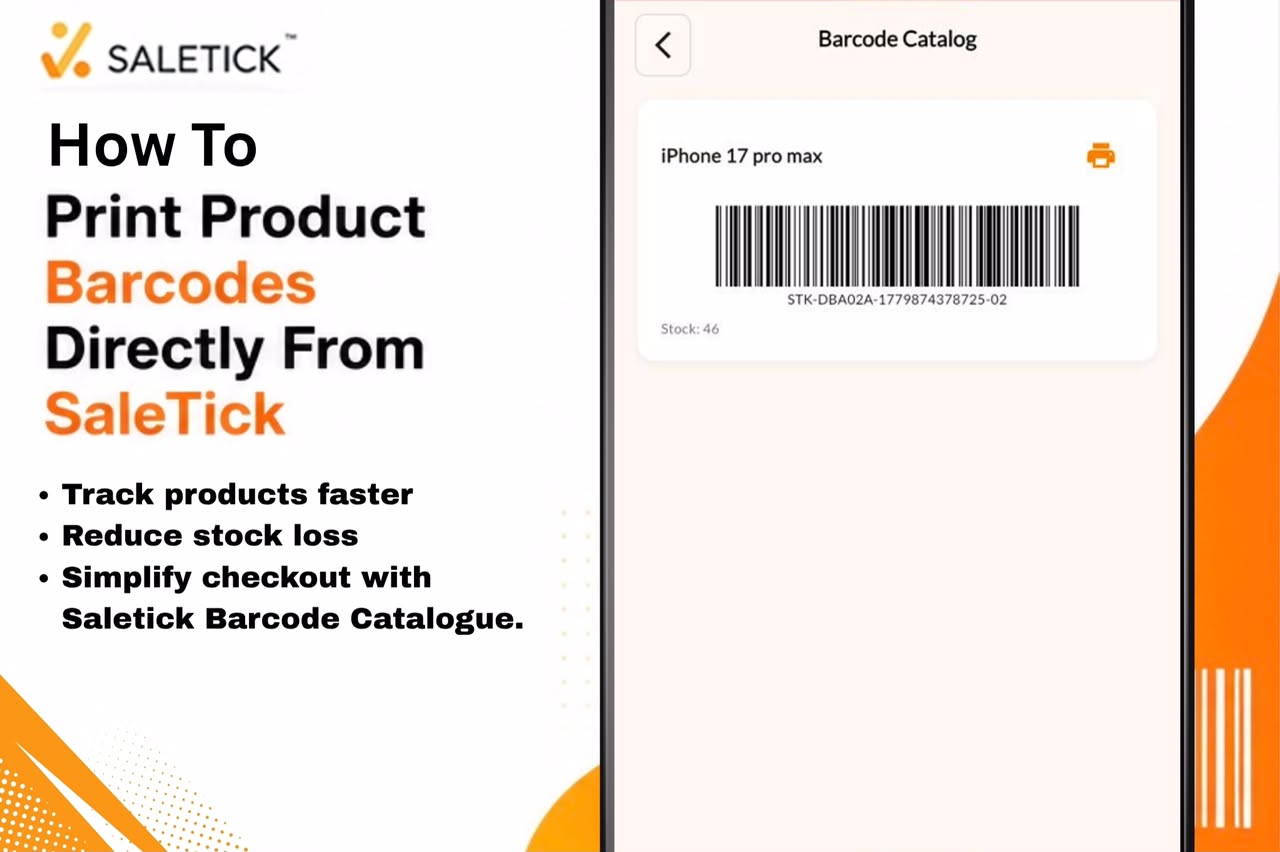
Get rid of stock loss or pricing errors with the new barcode feature on Saletick. Product barcodes aren’t just fancy stickers. They’re your first defense against stock loss, pricing errors, and checkout confusion. For you as a business owner, every scanned barcode creates a digital record that shows exactly what left your shelf and when.
But here’s the problem most Nigerian shop owners face: they either don’t use barcodes at all, or they buy expensive barcode printing services from external companies. That’s money you should be keeping in your business.
SaleTick solves this with its Barcode Catalogue feature. You can print professional product barcodes directly from your phone in minutes, with zero extra cost.
How to Access the Barcode Catalog
The process is straightforward and takes less than a minute to learn.
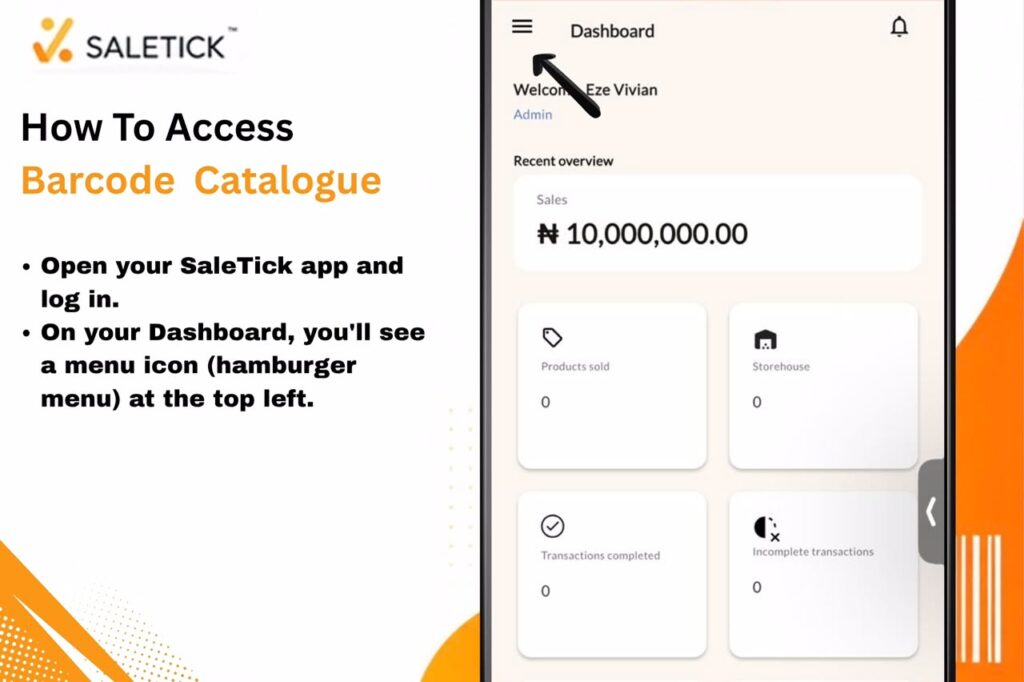
Open your SaleTick app and log in. On your Dashboard, you’ll see a menu icon (hamburger menu) at the top left.
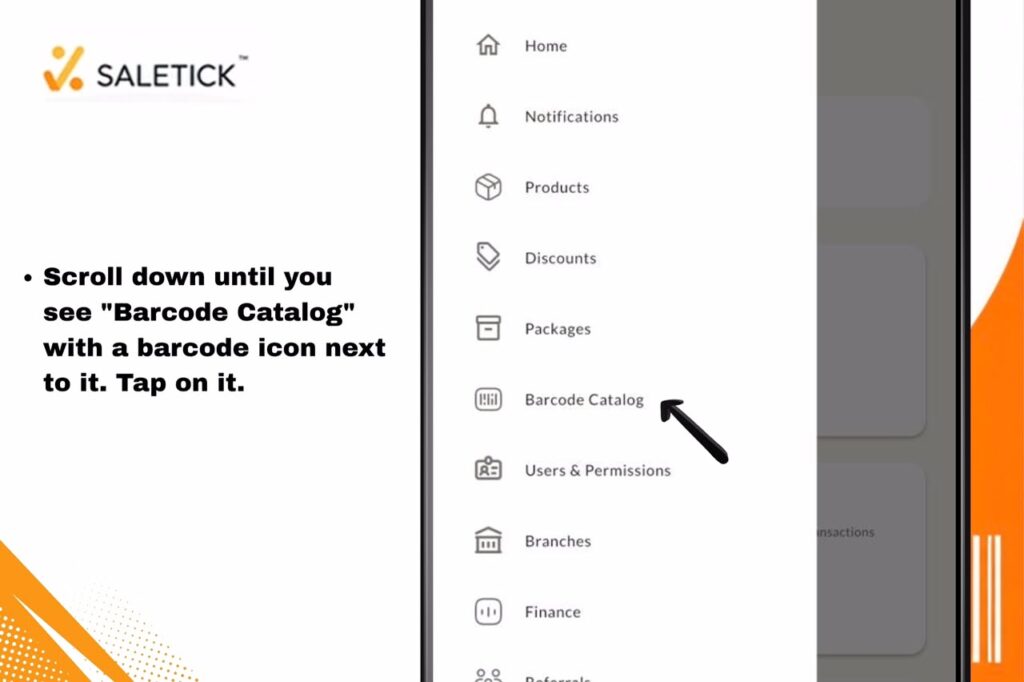
Tap it to reveal the full navigation menu. Scroll down until you see “Barcode Catalog” with a barcode icon next to it. Tap on it.
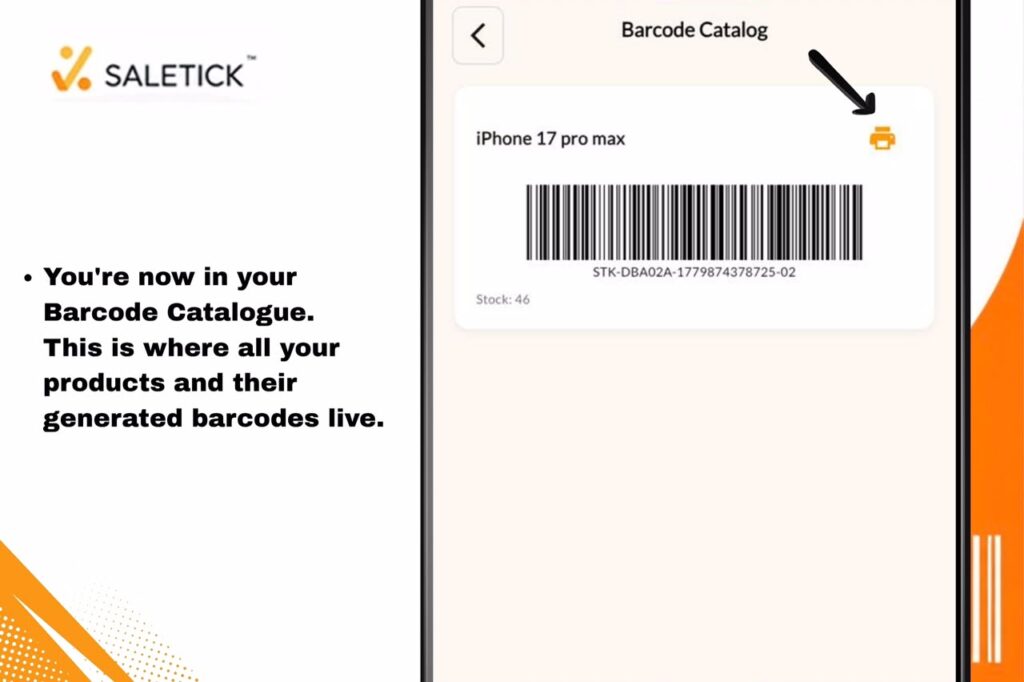
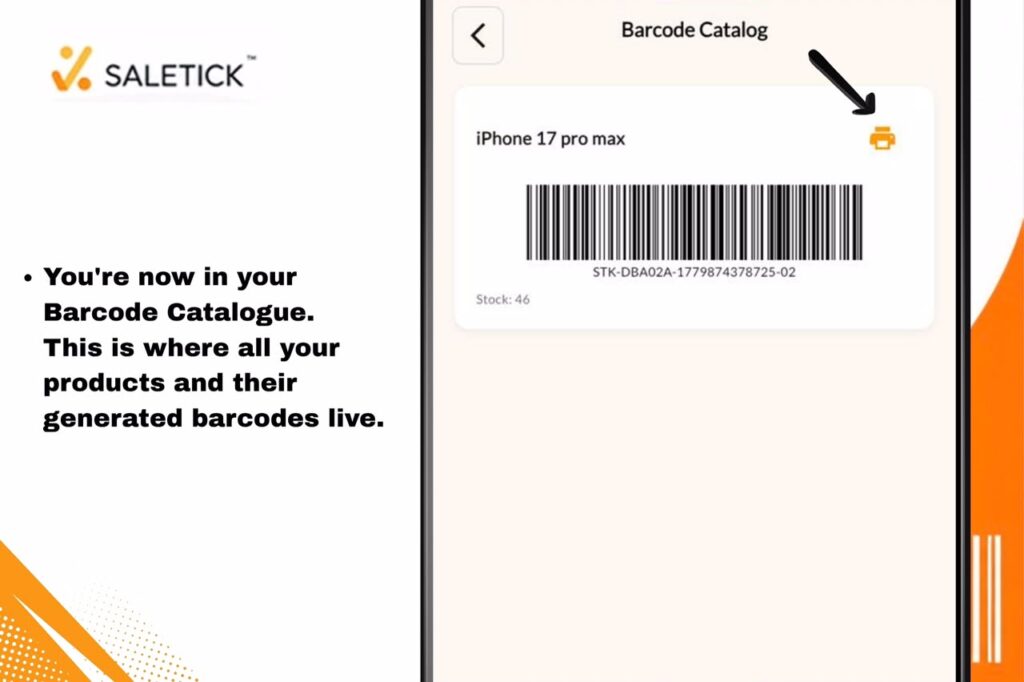
You’re now in your Barcode Catalogue. This is where all your products and their generated barcodes live.
Finding Your Product
In the Barcode Catalogue, you’ll see a list of all your products. Each product card displays the product name, the unique barcode image, the barcode number, and your current stock level. For example, if you sell Storm Body Spray, you’ll see it listed with its barcode (something like STK-50476A-1779797407370-01) and exactly how many bottles you have in stock. For How To Generate And Scan Barcodes; Read the topic linked here.
If you’re looking for a specific product, scroll through the list. SaleTick organizes all your products here, so you can find anything you’ve added to your inventory.
The Print Button
On each product card, look for the orange printer icon in the top right corner. That’s your print button. It’s impossible to miss.
Tap the printer icon. Your phone will prepare the barcode for printing. You have two options: print directly to a connected printer if you have one, or save it as a PDF to print later at an internet cafe or print shop.
Most Nigerian shop owners use thermal printers or standard inkjet printers. Both work perfectly with SaleTick’s barcode format. The barcode prints with the product name, barcode number, and stock information, giving you everything you need on one label.
Why This Matters for Your Business
Let’s say you own a pharmacy with 500 different products. Manually labeling each product takes hours and costs money. With SaleTick, you print barcodes on demand. Out of stock? Add the new batch to SaleTick, print fresh barcodes in seconds, and slap them on your shelves.
When your staff scans a barcode during checkout, SaleTick automatically updates your stock. At the end of the day, you see exactly what sold, what’s left, and which products are running low. This alone prevents the stock loss that kills many Nigerian retail businesses.
Your profit improves because you know your numbers. You order smarter. You catch theft. You make faster decisions.
Getting Started Right Now
Stop losing track of your products. Stop paying external services to print barcodes. Your phone has everything you need.
Download SaleTick today from Google Play Store or still Download Saletick from the Apple Store if you haven’t already. Create your product list. Access the Barcode Catalogue. Print your first batch of barcodes and Let Your Business Speak.
and print your first product barcode in the next 5 minutes.