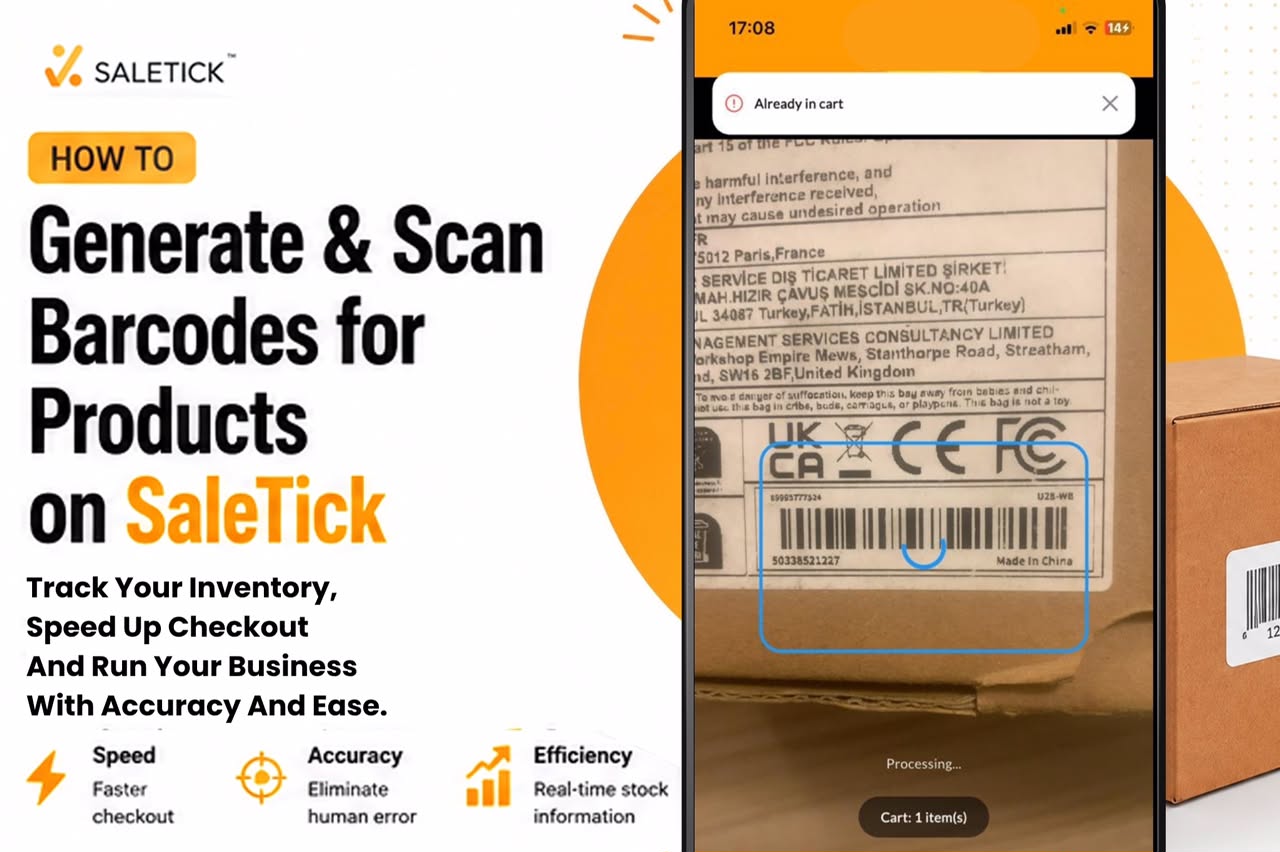
Managing inventory manually can be time-consuming and prone to errors. Whether you run a busy supermarket or a retail store, using barcodes is the fastest way to track your stock and speed up your checkout process.
In this guide, we’ll walk you through how to generate and scan barcodes using the SaleTick platform.
Why Use Barcodes in Your Business?
- Speed: Scan items at checkout instead of searching for them by name.
- Accuracy: Eliminate human error when recording sales or updating stock.
- Efficiency: Instantly pull up product details, prices, and stock levels.
Generating Barcodes for Your Products
SaleTick makes it easy to assign unique identifiers to your inventory. You can also Auto Generate barcodes or Scan them with either your phone camera or external scanner, when adding products to your Saletick account. This is a feature that is only available to Administrators or Branch Managers to ensure data accuracy for effective monitoring and reporting.
If you are adding products to your Saletick account follow the process below;
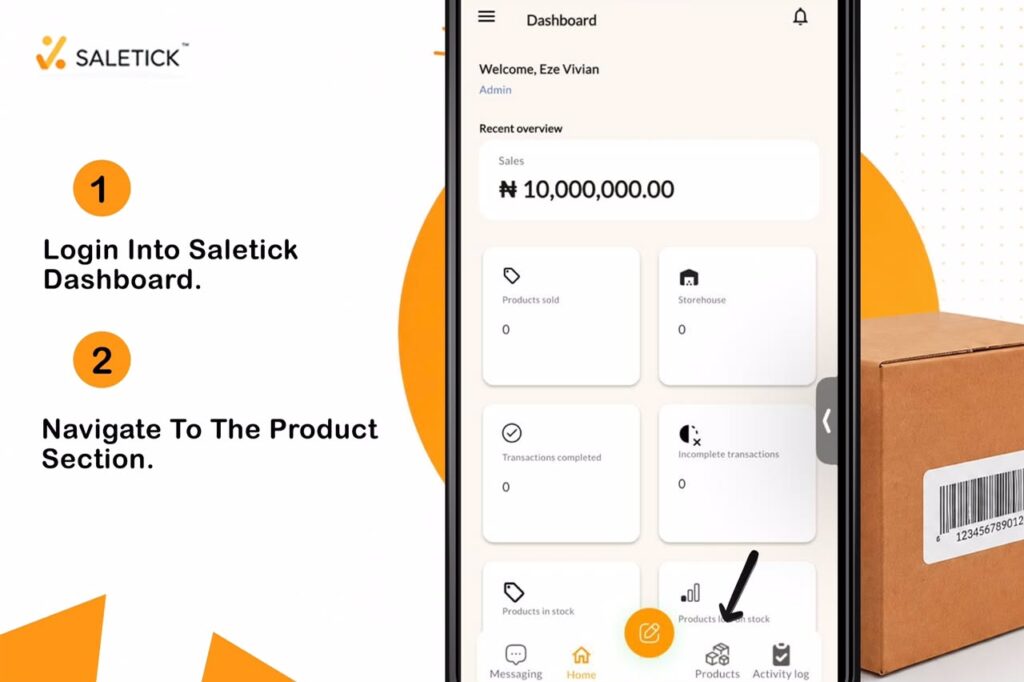
1. Log in to your SaleTick dashboard.
2. Navigate to the Products section.
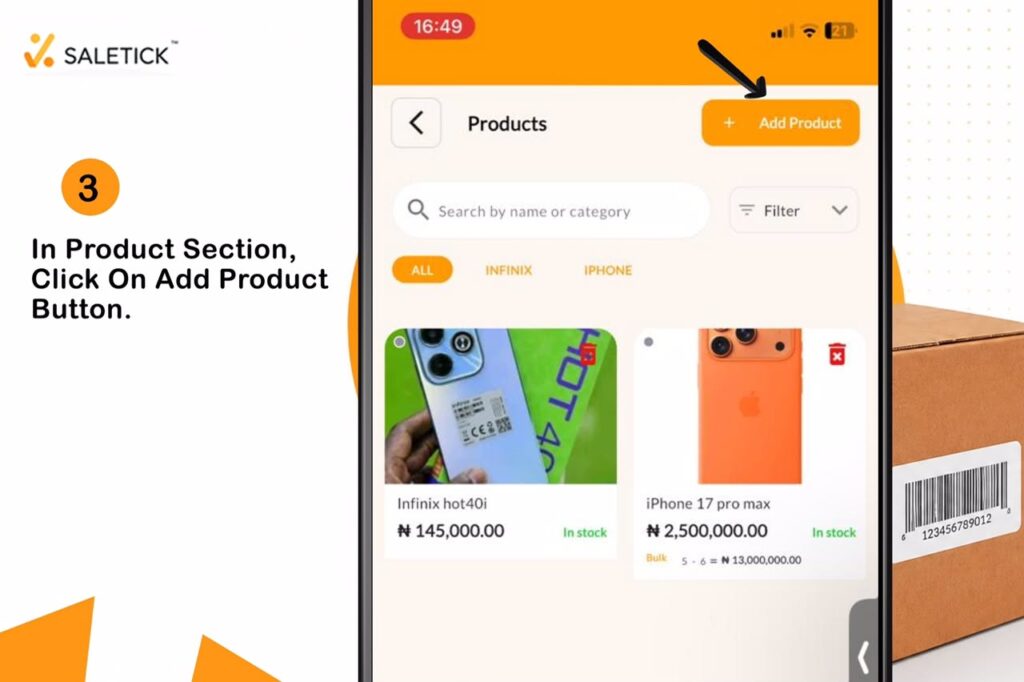
3. Once in the Product Section, click on the Add Product button.
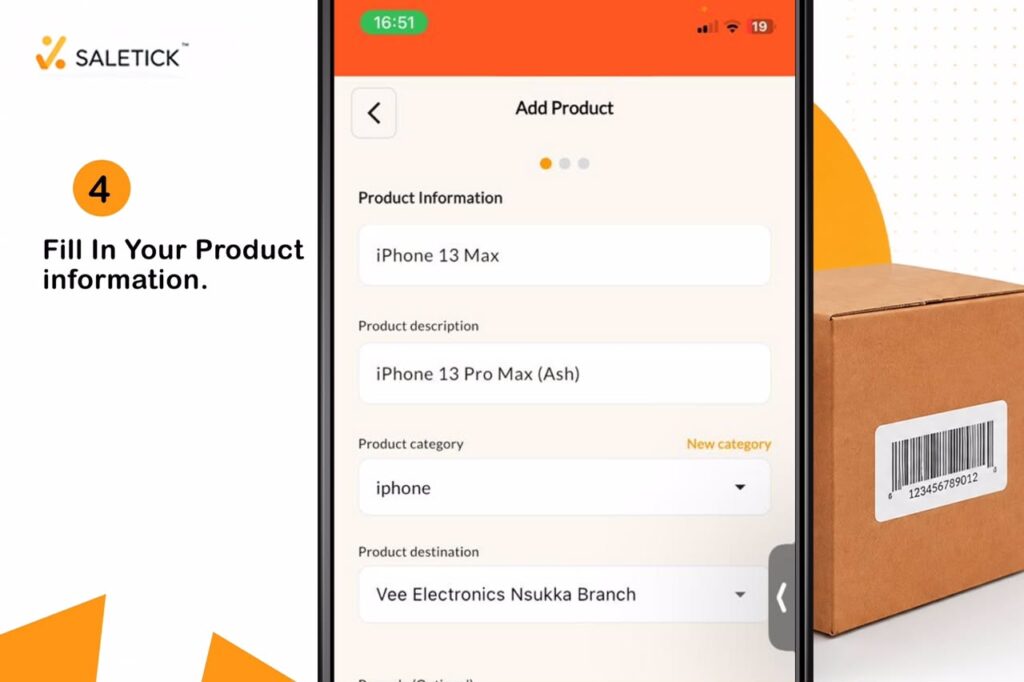
4. Fill in Product Information e.g, Product image, Product Name, Product Description, Category, Product Location and then you will see the barcode field. (For in-depth detail on How to Add Products to your Inventory, read this article; How to Add Products to Your Inventory on SaleTick.)
5. In the barcode field, you can either:
- Enter the existing barcode number from the manufacturer’s packaging.
- Or, if the product doesn’t have one, use the Auto Generate button to create a unique barcode ID for that item.
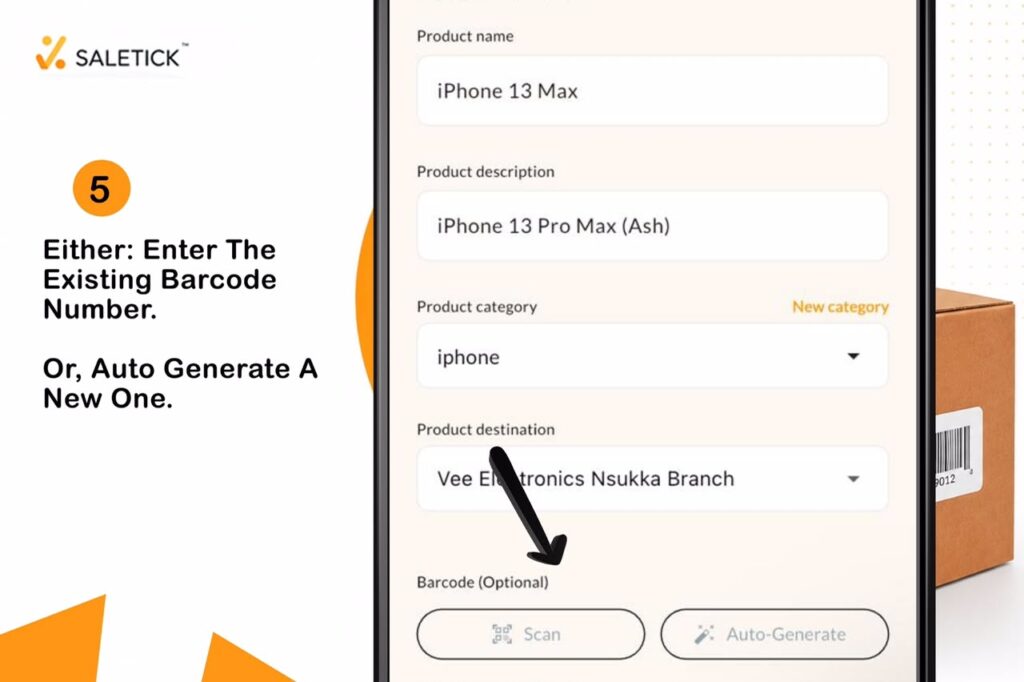
It would also be important to note that you can Add Products without barcodes as it is indicated, Optional, in the product information page and you can still add barcodes to products if you later want to by going back to your Product Section, clicking on the product you want to barcode and tapping Edit Product. Then, by scrolling down to the barcode field you can either scan or auto generate barcodes.
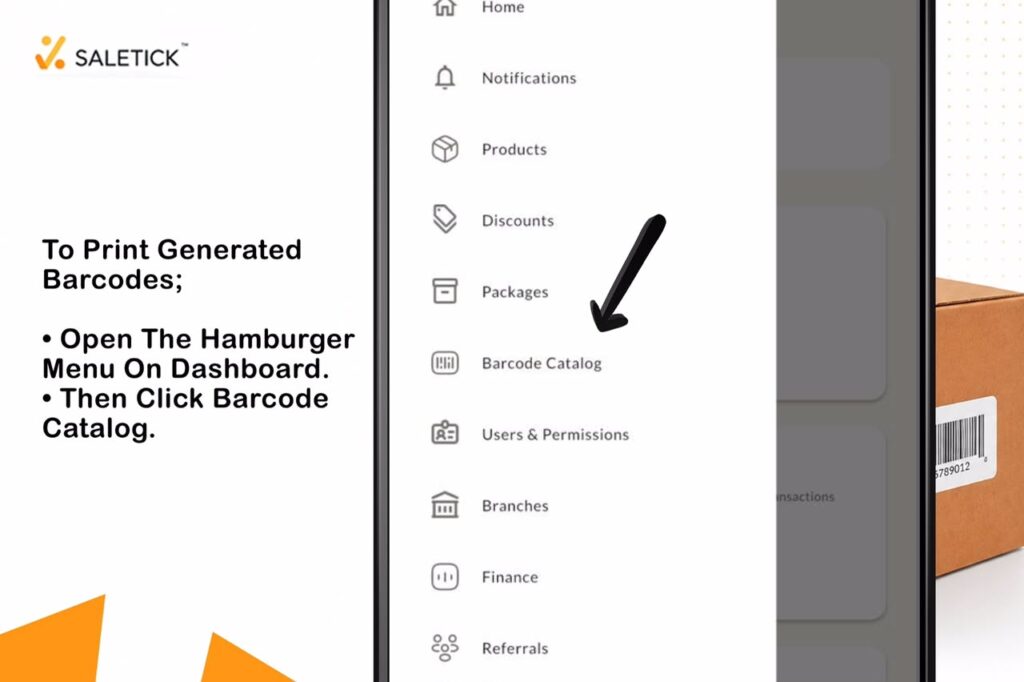
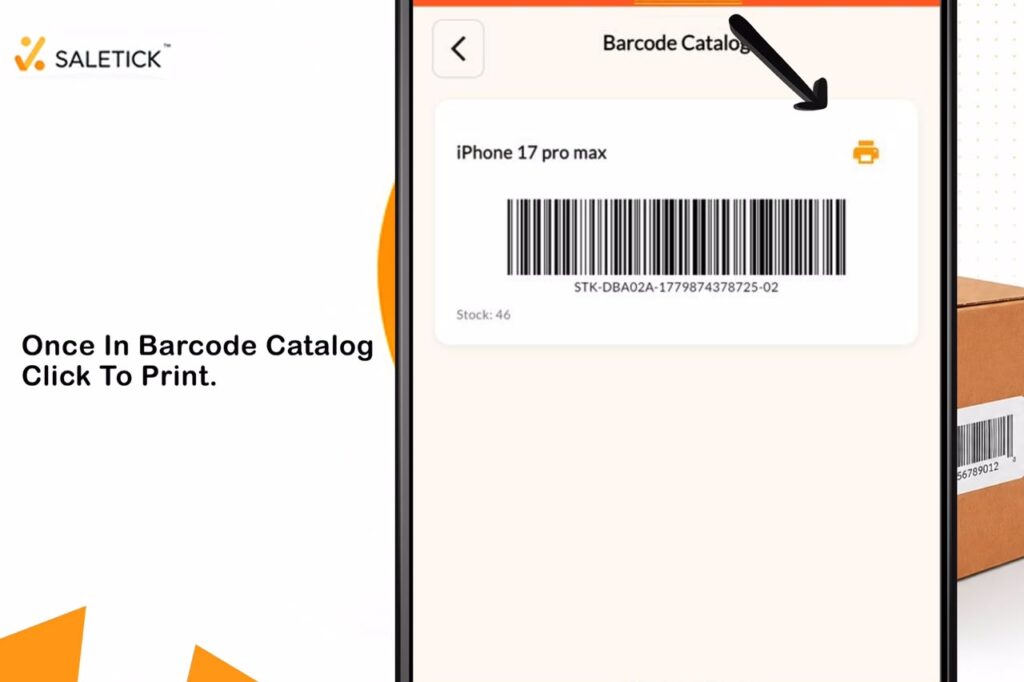
(Pro-tip: You can print these generated barcodes using a standard label printer to stick onto your products or shelves just by clicking the hamburger menu on your dashboard page and go to Barcode Catalog before clicking on the printer icon!)
Scanning Products at Checkout
Once your products are barcoded, scanning them is seamless.
1. Open the POS (Point of Sale) interface on your device or login as POS Agent or Branch Manager.
2. Click on the Scan Icon
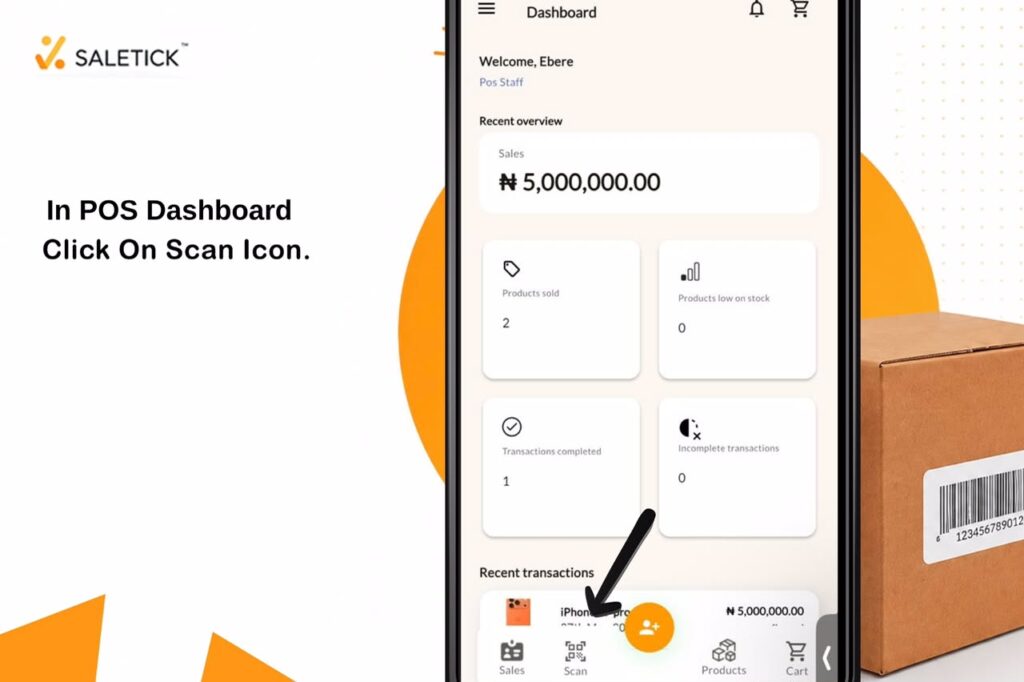
3. Two options will be displayed below and you can either choose to use an external barcode scanner to scan (or use your phone’s camera if using the mobile app).
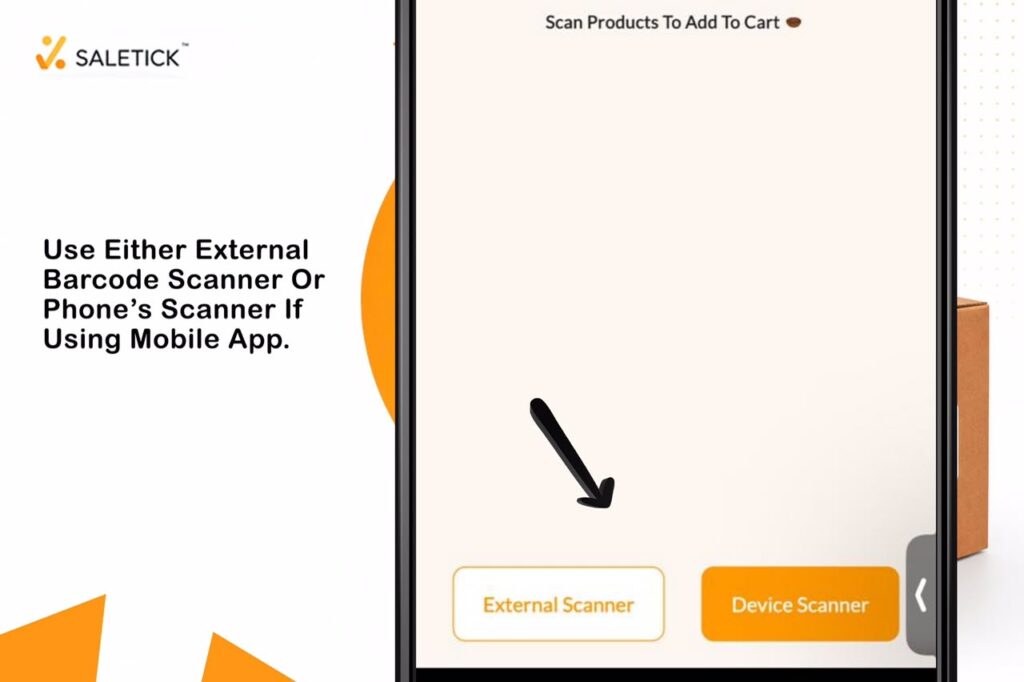
4. Simply scan the barcode on the product.
5. SaleTick will instantly identify the item, add it to the cart, and display the price.
See It in Action
Sometimes, seeing the process is better than reading about it. Check out this video guide on how to set up and use barcode scanning in your shop:
Watch Saletick YouTube Video Link Here
The Practical Scenario Of Scanning Products During a Sale
This is where the magic happens. When a customer is at your counter, you don’t need to scroll through your inventory list.
For example, a customer brings a pair of shoes to the counter. You pick up your phone, open the SaleTick app, and tap the Scan icon and the product will be identified for you.
Why this changes your business:
- Speed: You can serve 3 customers in the time it used to take to serve 1.
- Accuracy: No more “oops, I selected the wrong size” errors. The scanner knows exactly which item it is.
- Professionalism: Your customers see a modern, efficient checkout process, which builds trust in your business.
Simplify Your Operations with SaleTick
Stop wasting time on manual entry. By integrating barcode scanning into your daily workflow, you can focus on what really matters, growing your business and serving your customers. Ready to streamline your inventory?
If you’re already using SaleTick, head over to your dashboard to start adding barcodes today. If you haven’t started yet, Download the SaleTick app and join thousands of business owners who are taking control of their retail operations.