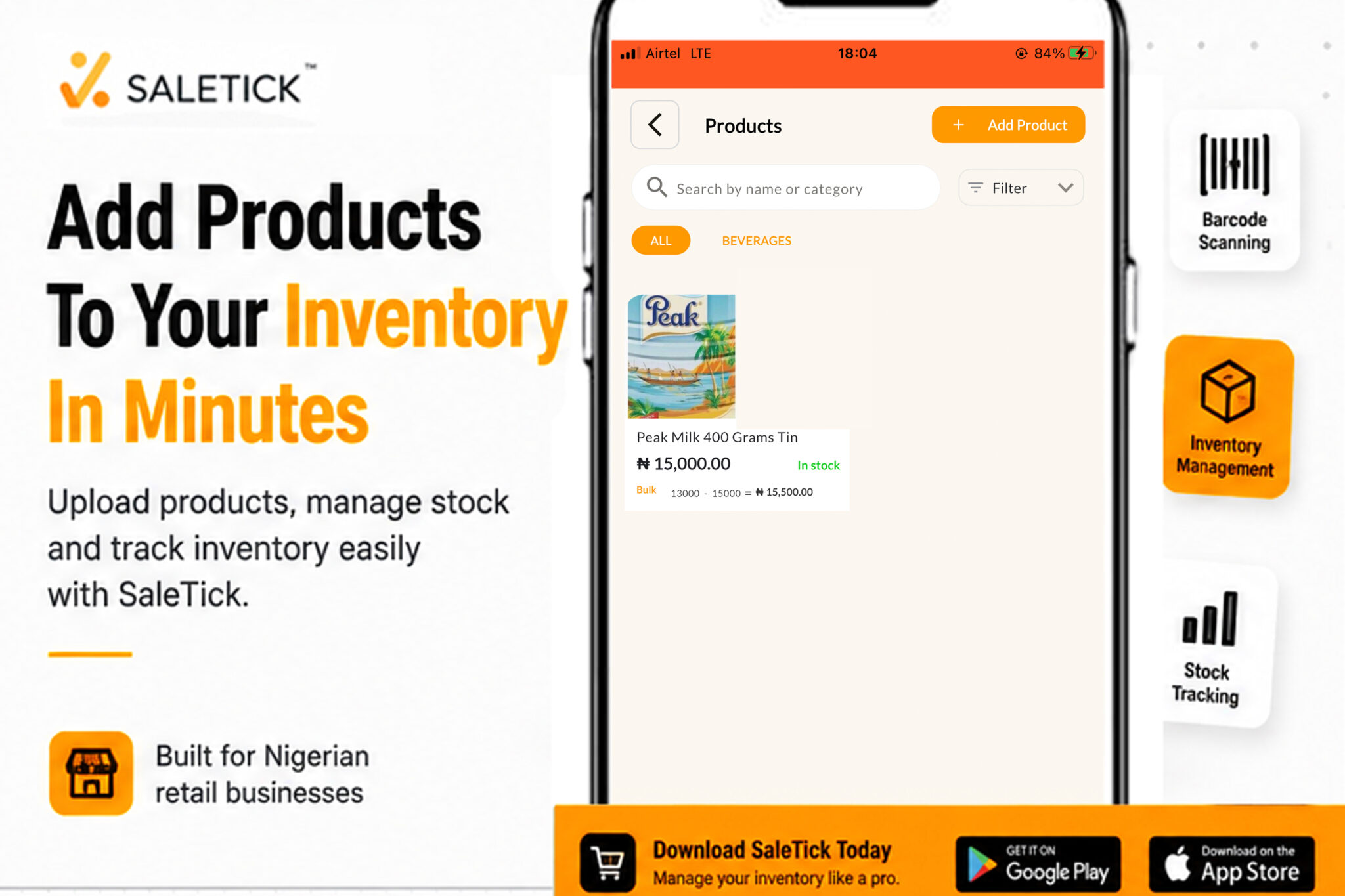
Running a retail business in Nigeria is no small feat. Between managing customers, tracking daily sales, and keeping an eye on your stock, things can get overwhelming fast. If you are still relying on paper records or manual counting to manage your inventory, you are likely losing money to errors and stockouts.
Adding your products to the SaleTick platform is the first step toward gaining total control over your business. Whether you run a busy pharmacy in Lagos or a supermarket in Abuja, digitizing your inventory is the smartest move you can make today.
Who Can Add Products?
On SaleTick, the ability to add and manage inventory is restricted to Administrators and Managers. This ensures that your business data remains secure and accurate. If you are a staff member, you will need to coordinate with your manager to update the stock list. To know more about an Administrator account, read this article, How to Setup Your SaleTick Administrator Account For Android.
Step By Step Procedure On How to Add Products to Your Inventory
Adding a product is straightforward. Follow these steps to get your items into the system:
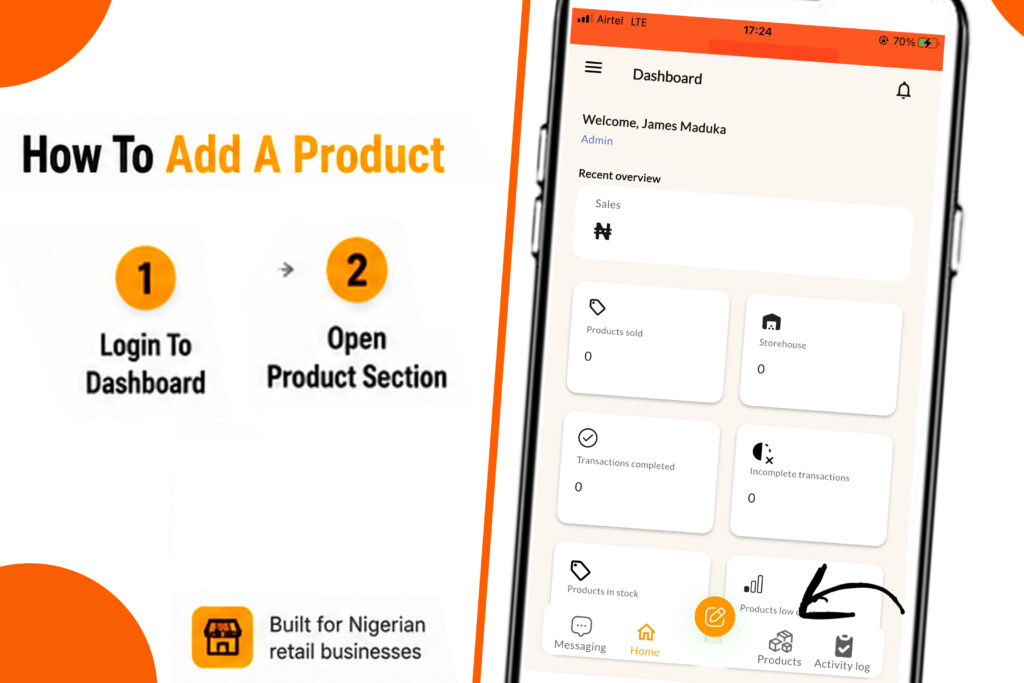
1. Log in to your SaleTick Dashboard: Use your admin or manager credentials to access your business account.
2. Navigate to the Product Section: Look for the tab labeled Products.
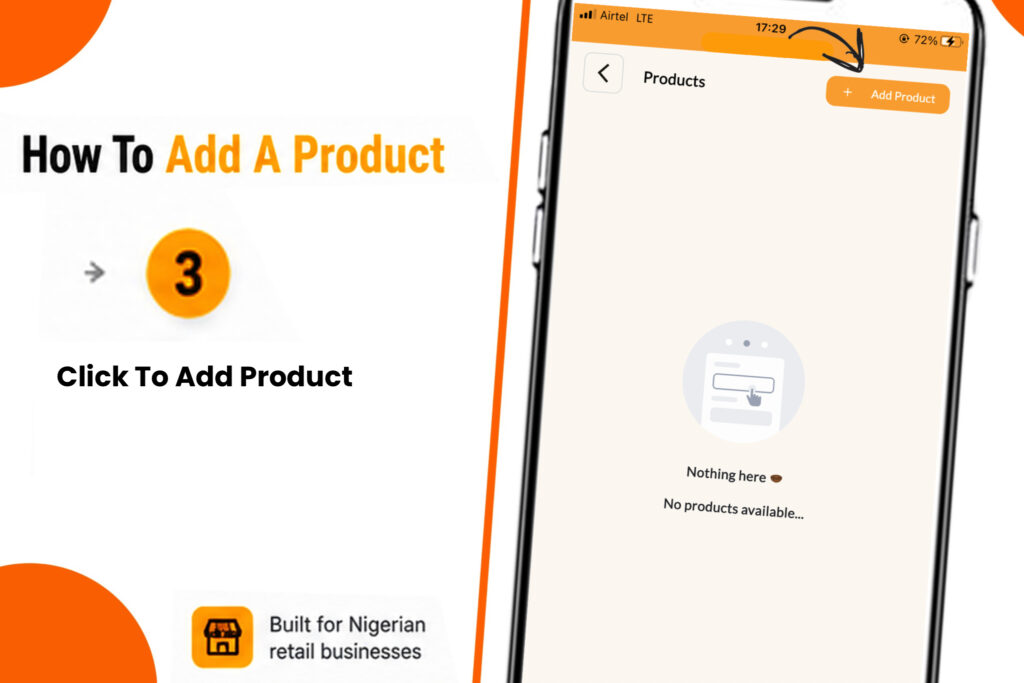
3. Click on Add Product: You will be prompted to enter the details of the item.
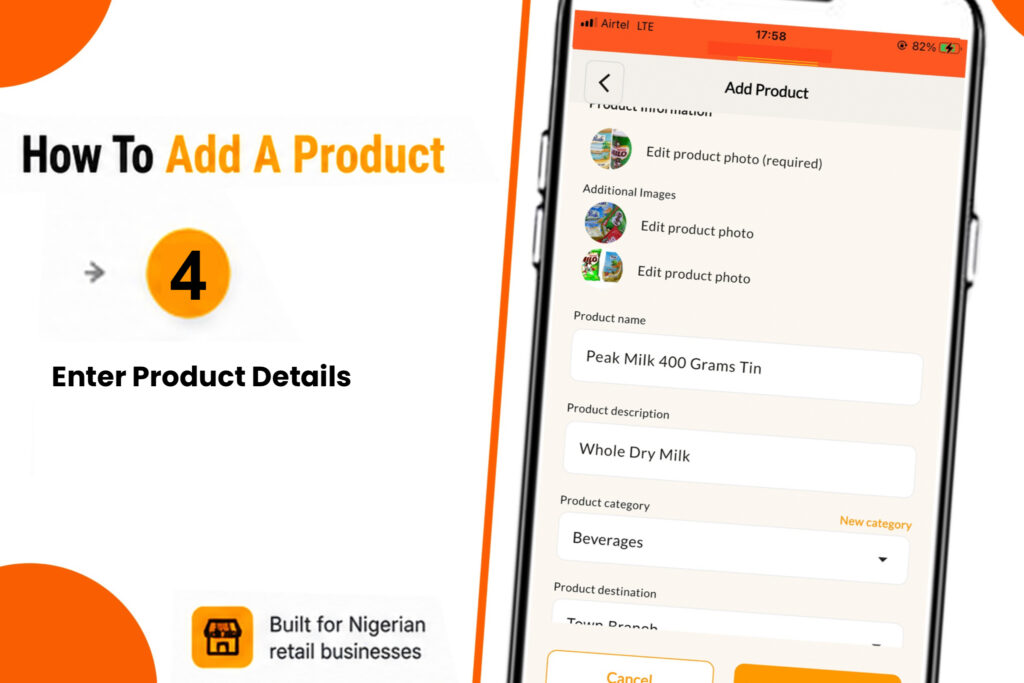
4. Fill in the Required Details:
- Product Photo: You will be required to upload a photo of the product you are adding.
- Product Name: Be specific (e.g., “Peak Milk 400g Tin” instead of just “Milk”).
- Product Description: Add any relevant details that help identify the item.
- Product Category: Group your items (e.g., Beverages, Toiletries) to make reporting easier.
- Product Location: Select the product destination or location where the stock is kept.
- Scan or Autogenerate Barcodes: While adding products, you would be required to scan the barcodes on your product or Autogenerate a barcode if your product doesn’t have one and click on Next. You can scan barcodes using an external scanner or your device scanner.
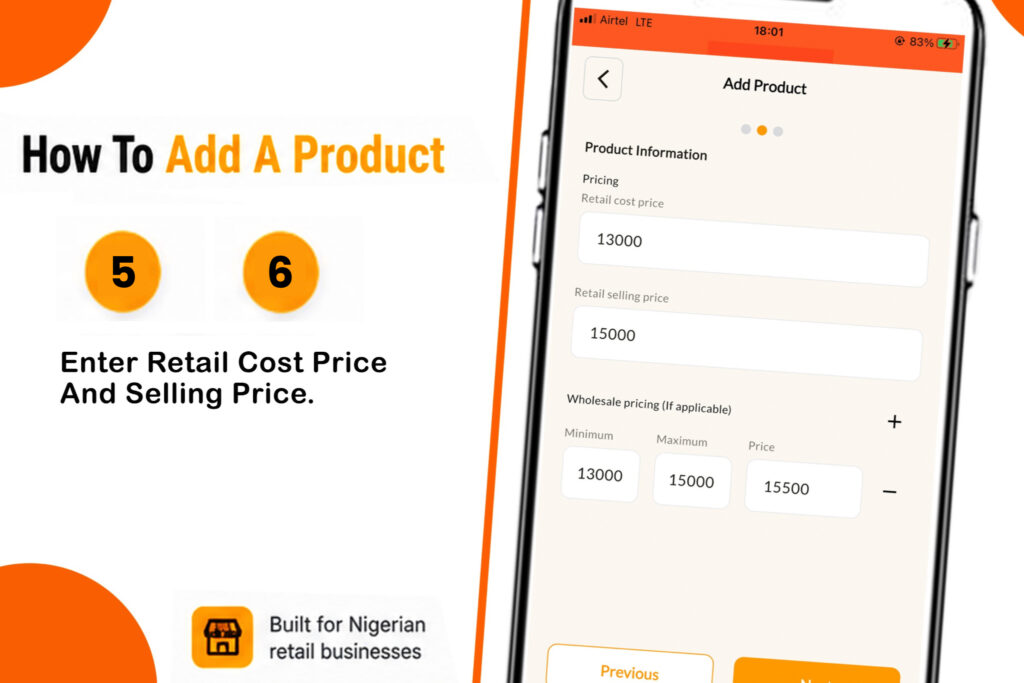
5. Set Retail Cost and Retail Selling Price: After filling in product details, you will be required to put in the Retail Cost and Retail Selling Price. For example, If the Retail Cost (How much you purchased the product) for a can of body spray is 3,500 Naira, you can set the Retail Selling Price (How much you want to sell your product) at 4,000 Naira.
6. Set Up Wholesale Pricing: You can also set up wholesale pricing if applicable to you. Here, you would be required to set the Minimum Quantity for wholesale, Maximum Quantity for wholesale (optional) and the Wholesale Price for your product.
7. Set Stock Quantity: In this section you will have to input the exact number of your product is currently in stock.
8. Set Your Stock Threshold Level: This is crucial. Set a number so the system can alert you when stock is running low, ensuring you never run out of popular items.
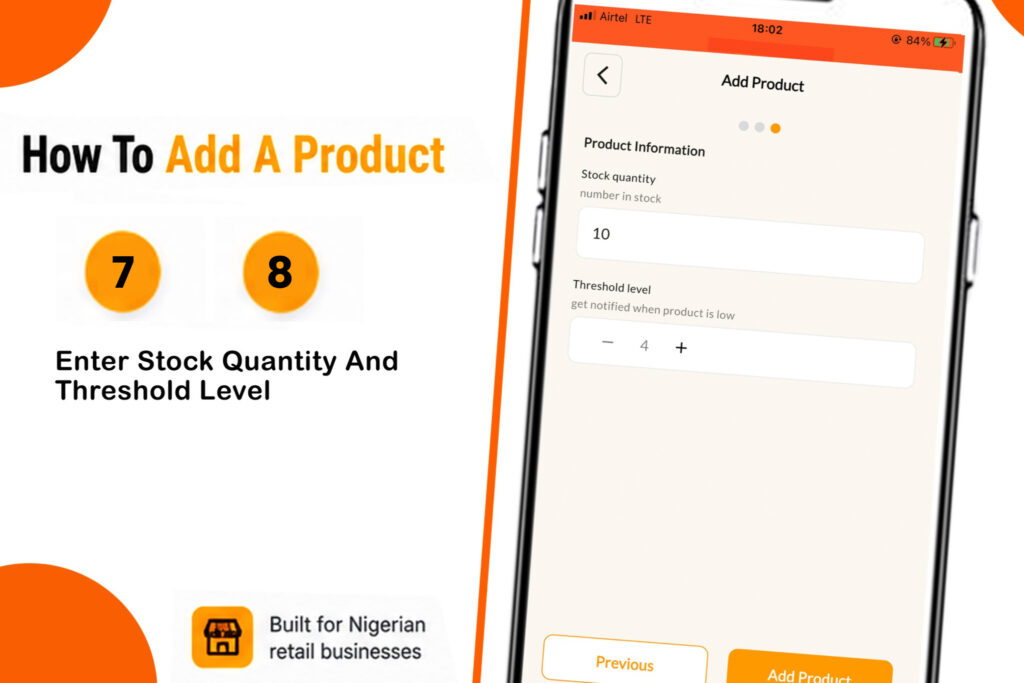
9. Add Your Product: Once you hit Add Product, your product is live and ready to be sold.
Need Help? We Do It For You
We understand that you are busy running your business. If you have hundreds of items to upload, you do not have to do it alone. SaleTick offers free product upload assistance. Our agents are ready to help you get your entire inventory digitized so you can focus on selling. Reach out to our Saletick support team via phone call, 08169302992, to get started.
Learn Visually From Our YouTube Channel
Sometimes, seeing is better than reading. We have created a detailed video guide to walk you through the process of Adding Products on the app.
SaleTick Inventory Management Guide – https://youtube.com/@saletick
Why Digitizing Your Inventory Matters
When your products are properly logged in SaleTick, you stop guessing. You get real-time data on what is selling, what is sitting on the shelf, and exactly when you need to restock. This level of visibility is what separates successful Nigerian businesses from those that struggle to scale.
Stop losing track of your stock and start making data-driven decisions. If you are ready to streamline your operations, visit SaleTick Website or go to Google Play Store For Android Saletick Download / Apple Store For iOS Saletick Download to download the app and get started. For a thorough guide, read this article, How to Install Saletick on Android & iPhone – Step-by-Step Guide (2026).
Ready to transform your shop? Log in to your SaleTick account now, add your first batch of products and let your business speak.