In the bustling retail environment of Nigeria, time is money. If you run a supermarket, pharmacy, or boutique, you know the frustration of long queues. When customers wait too long to pay, they get impatient and might leave without buying. Manual price entry is slow and prone to errors. If you are still typing product names or prices into your system, you are holding your business back.
Connecting a barcode scanner and a thermal printer to your SaleTick account is the fastest way to professionalize your checkout process. This setup turns your shop into a high-speed retail machine.
Why Hardware Matters for Your Business
Using a barcode scanner removes the guesswork from your sales. It ensures that the exact price and product details are captured every time. A thermal printer provides a clean, professional receipt that builds trust with your customers. Together, they eliminate manual entry mistakes and keep your inventory records accurate.
Step-by-Step: Connecting Your External Barcode Scanner For Checkout
Most barcode scanners are plug-and-play devices and at Saletick only a POS Staff can checkout from the cart. Follow these steps to do it:
1. Power and Connection: Connect your scanner to your computer via the USB port. If you are using a wireless Bluetooth scanner, put it in pairing mode and connect it through your device Bluetooth settings.
2. Verify Input: Open a simple notepad or the search bar in your browser. Scan any product barcode. If the numbers appear on the screen, your scanner is successfully communicating with your device.
3. Integrate with SaleTick: Log into your SaleTick dashboard on the POS or Branch Manager interface. Navigate to the Scan Icon.
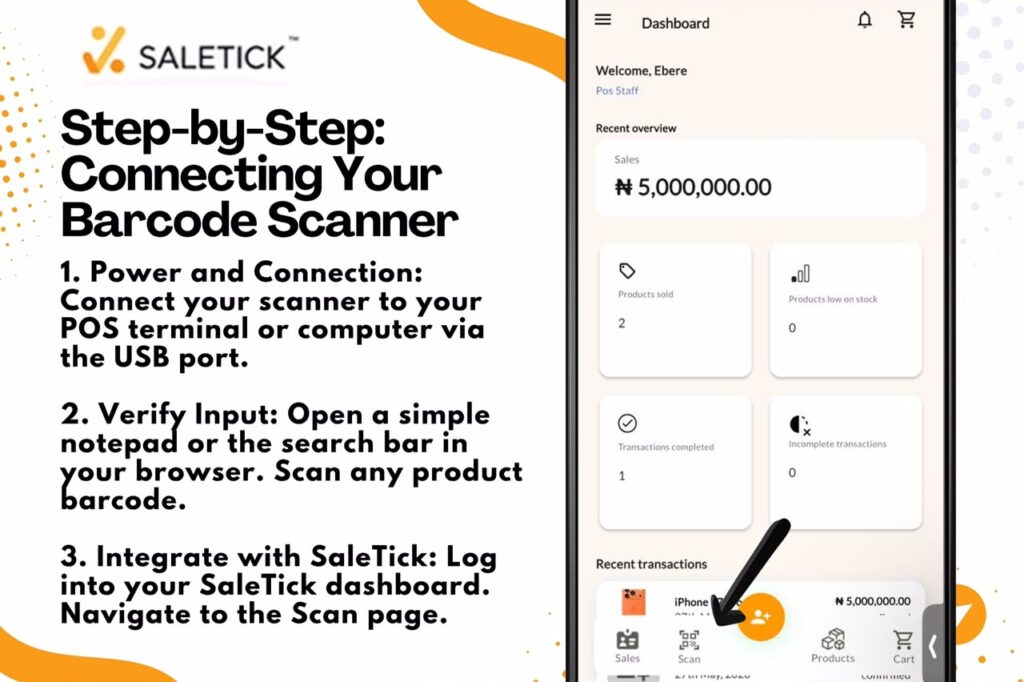
3. Scanning Products: On the next page, you would be prompted to Click on either the External Scanner or Device Scanner to scan an item, then click on External Scanner. If connected to the External Scanner, SaleTick will instantly pull up the product, add it to the cart, and calculate the total.
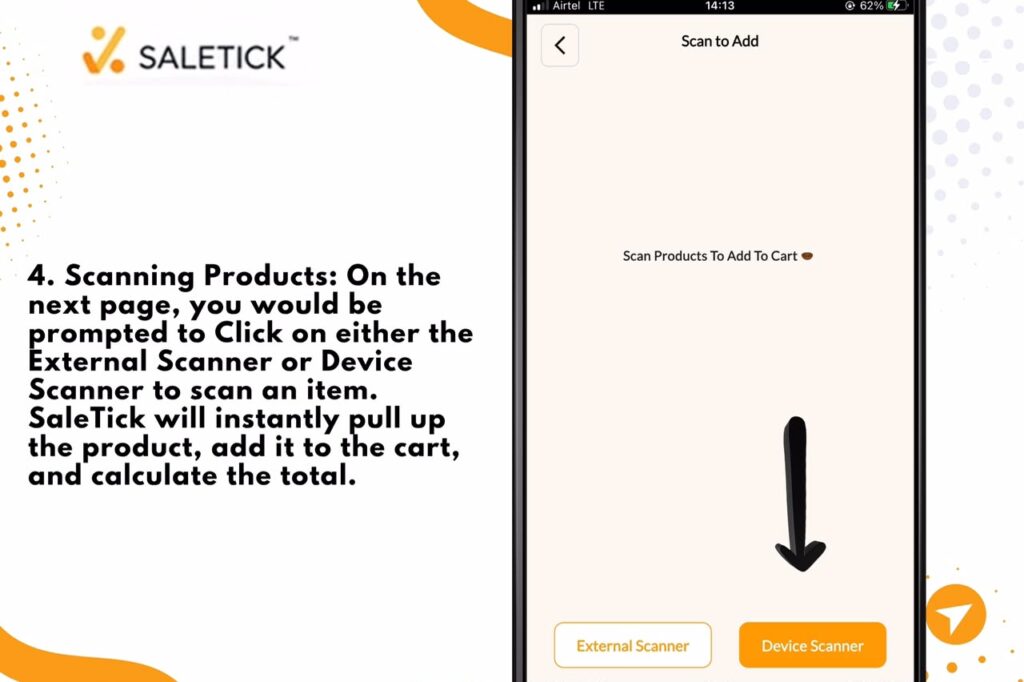
It would also be important to note that Scanning to Add to Cart is only available for Branch Managers or POS Agent.
To know more about how to Add Product Using Barcode, Click Here; How to Add Products to Your Inventory on SaleTick
Step-by-Step: Connecting Your External Thermal Printer And Printing Receipt
A thermal printer is the standard for retail because it does not require ink. Here is how to link it:
1. Driver Installation: For Windows users, ensure the printer drivers are installed. For mobile or tablet setups, ensure the printer is discoverable via Bluetooth.
2. System Configuration: Go to your device settings and select your thermal printer as the default printing device.
3. Printing Receipt For Branch Manager and POS Agent: Open your SaleTick app and go to the Products section.
- Click on Product about to be purchased and Tap on Add To Cart.
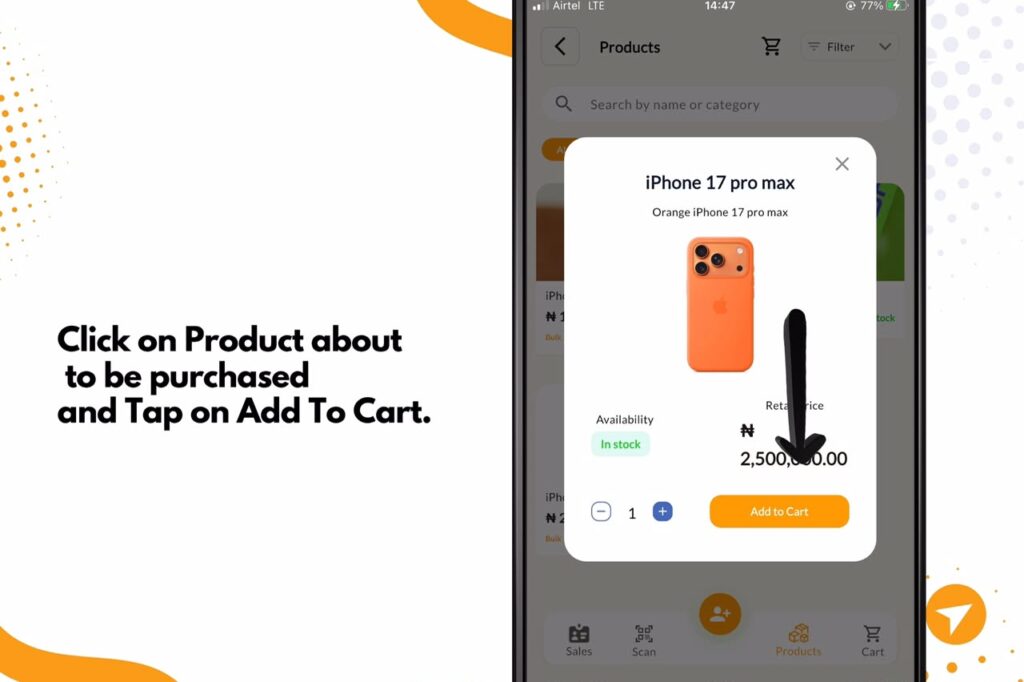
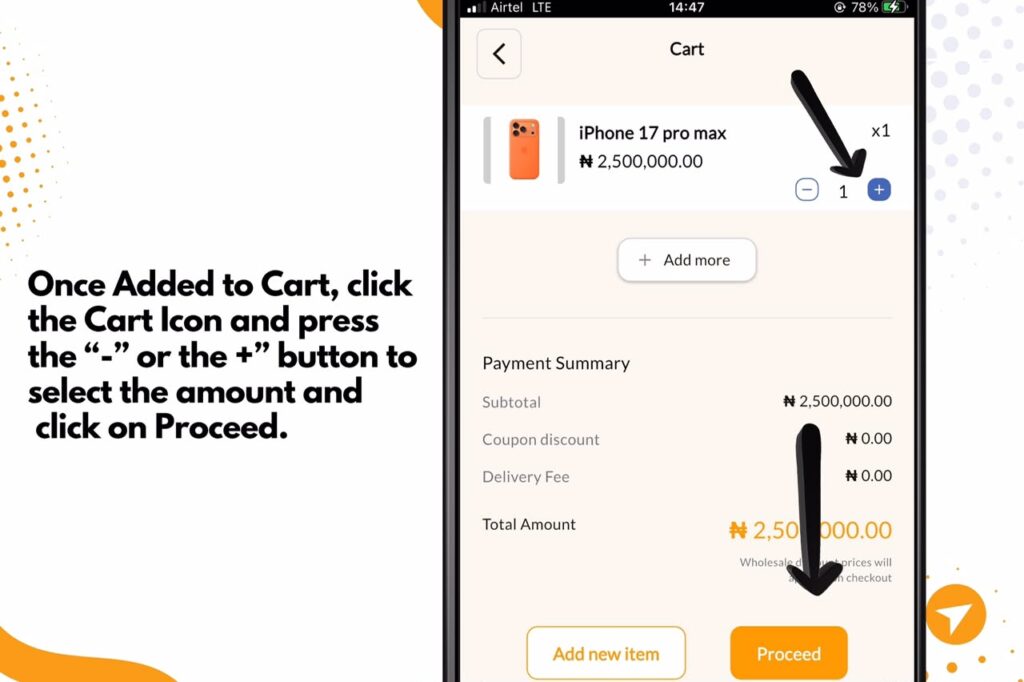
- Once Added to Cart, click the Cart Icon and press the “-” or the +” button to select the amount and click on Proceed.
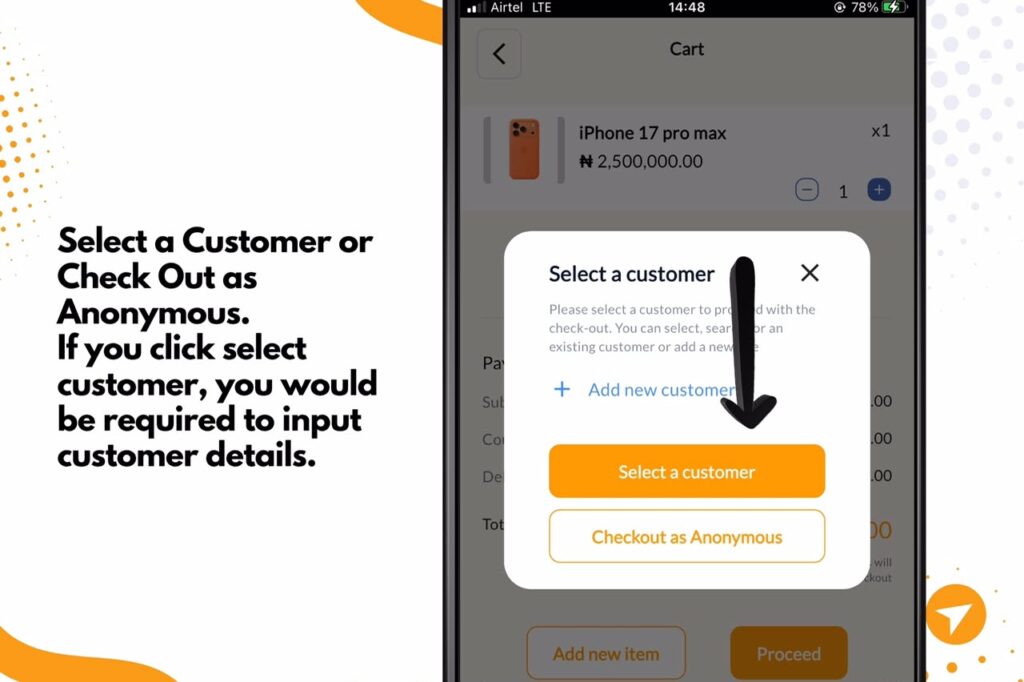
- On the next page you would be asked to either Select a Customer or Check Out as Anonymous. If you click select customer, you would be required to input customer details.
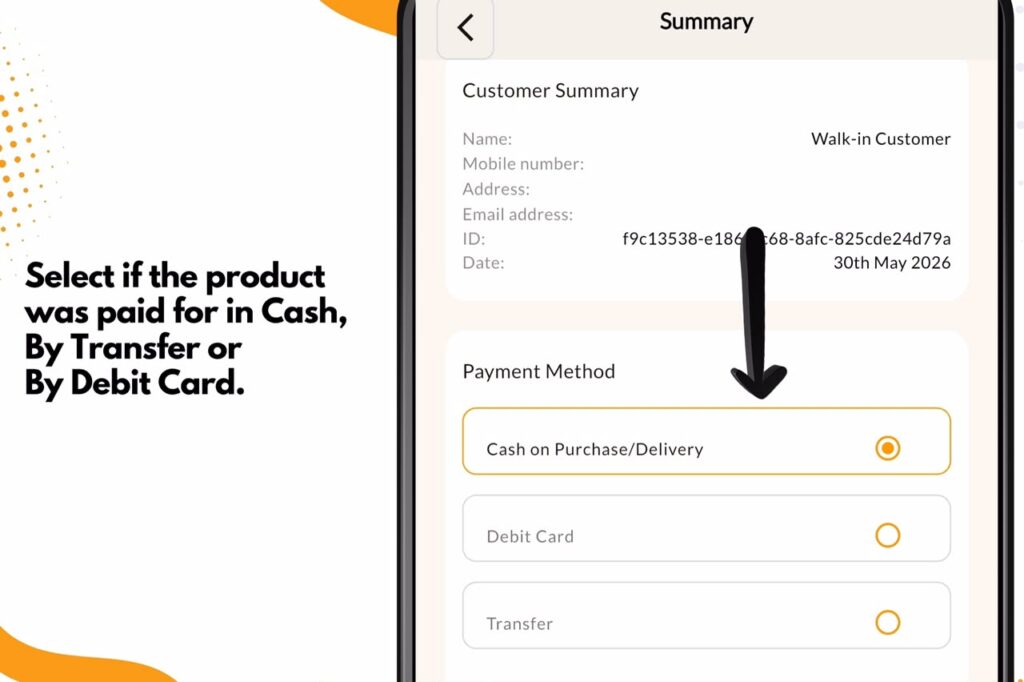
- After inputting customer details, you will have to confirm the transaction and select if the product was paid for in Cash, By Transfer or By Debit Card.
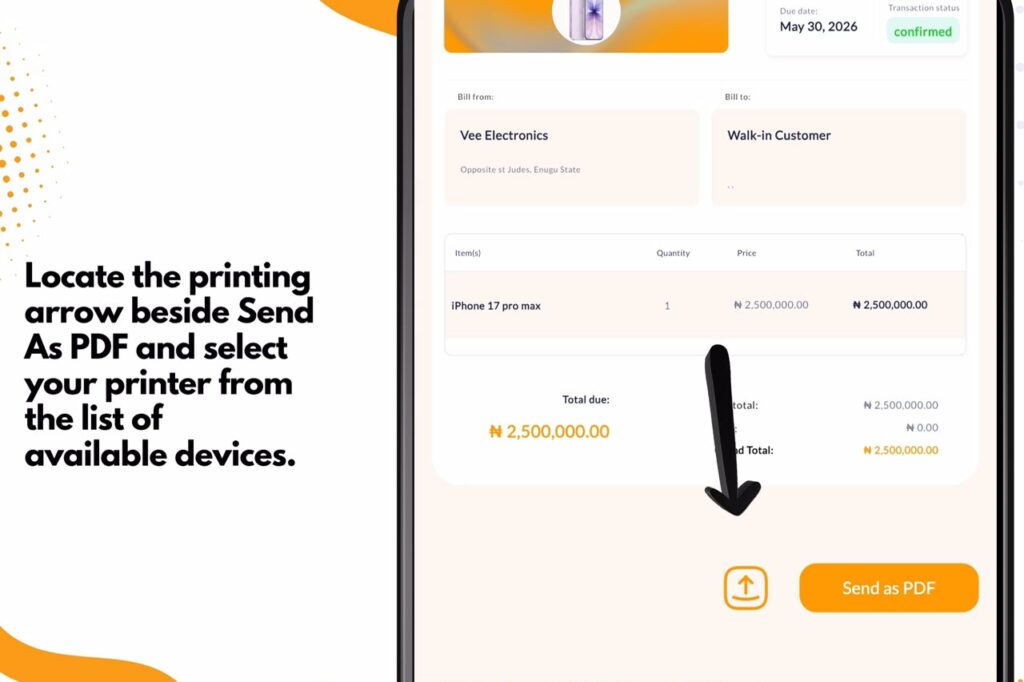
- Then Locate the printing arrow beside Send As PDF and select your printer from the list of available devices. After performing a test sale in SaleTick and clicking the print button, if the receipt prints clearly, your setup is complete.
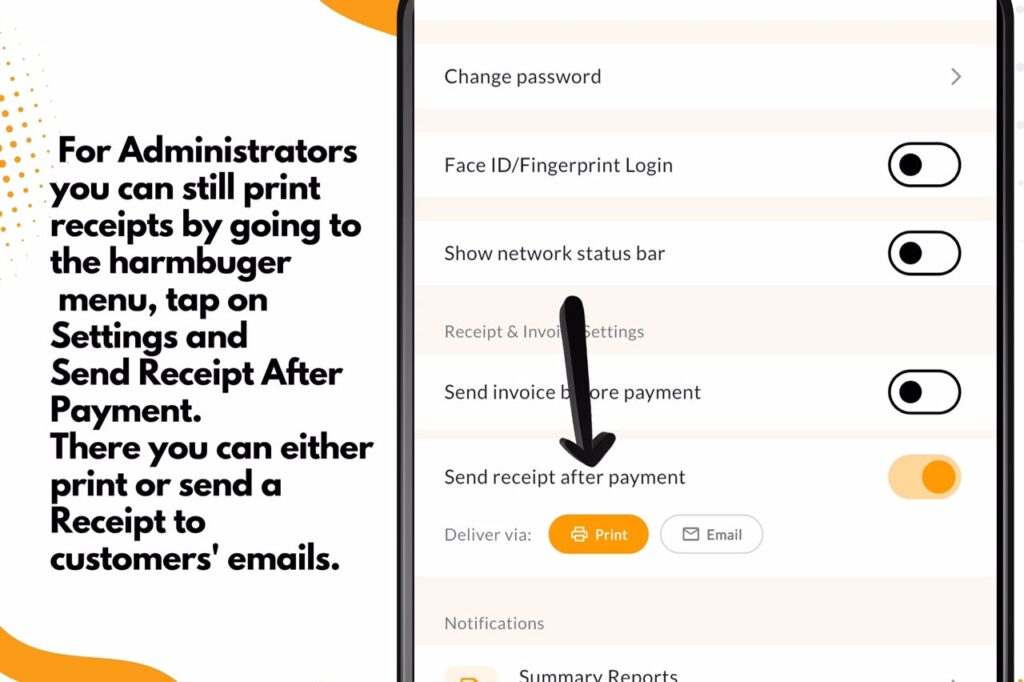
4. Printing For Administrators: For Administrators, you can still print receipts by going to the hamburger menu, tap on Settings and clicking Send Receipt After Payment. There you can either print or send a Receipt to customers’ emails.
Real-Life Impact
Imagine a busy Saturday morning in your shop. With a scanner, you can process a customer purchase in seconds. The receipt prints automatically, showing the customer exactly what they bought and the total cost. This speed keeps the line moving and allows you to serve more people in less time.
CLICK HERE TO WATCH A VISUAL INSTRUCTION ON THE SALETICK YOUTUBE CHANNEL
The SaleTick Advantage
SaleTick is designed to work seamlessly with standard retail hardware. By automating your checkout, you reduce the risk of theft, improve inventory accuracy, and give your customers a modern shopping experience. You do not need to be a tech expert to set this up. The system is built for Nigerian business owners who need results without the headache.
Stop letting slow checkout processes cost you sales. By connecting your barcode scanner and thermal printer to SaleTick, you create a professional system that saves time and protects your profit. It is a small investment in hardware that pays off every single day.
Ready to speed up your sales? Download or Log into SaleTick today and get your shop running at full speed. Need help with your setup?