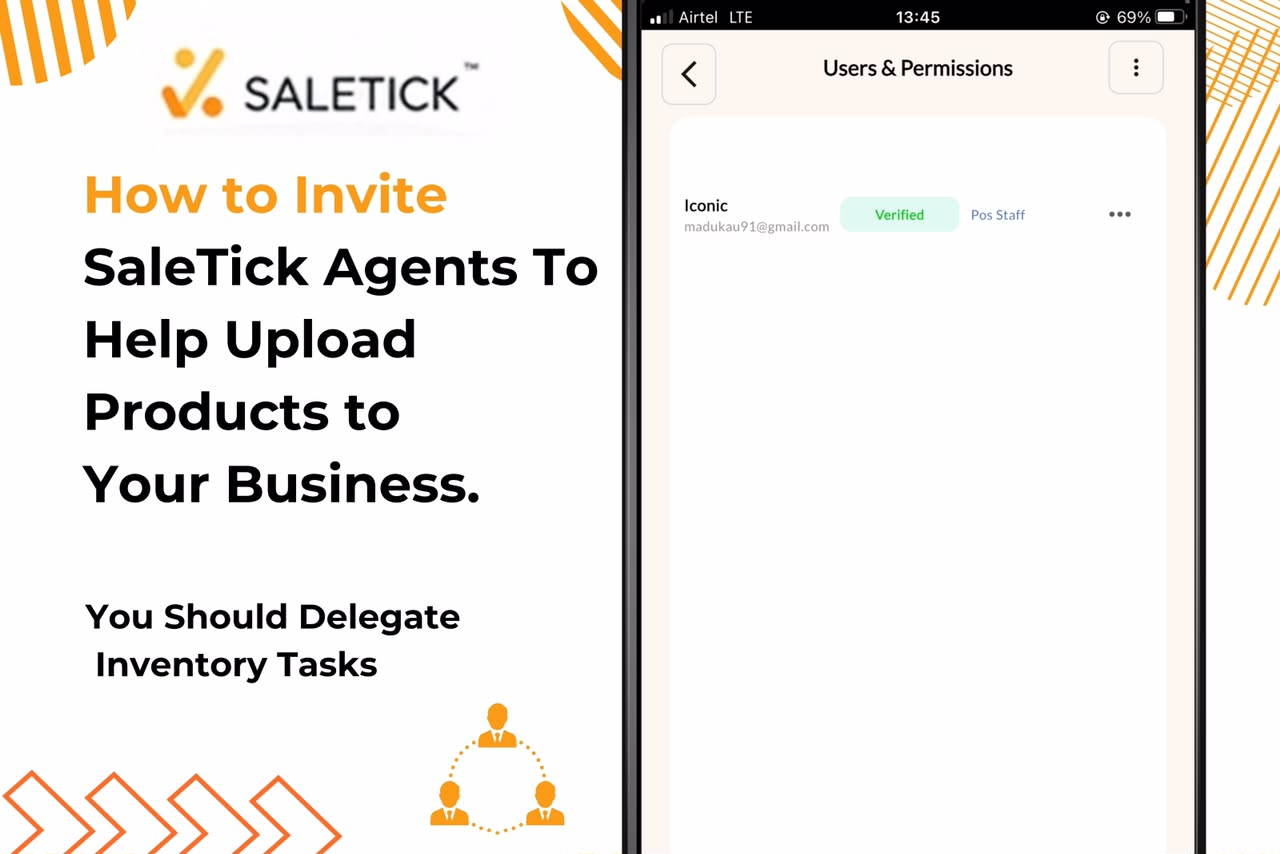
Running a retail business in Nigeria is a full-time job. Between handling customers, tracking daily sales, and keeping your inventory in check, the workload can quickly become overwhelming. One of the most time-consuming hurdles for any shop owner, supermarket manager, or pharmacy owner is manually inputting hundreds of product items into your inventory system. If you are doing this alone, you are losing valuable time that could be better spent on growing your business.
The good news is that you do not have to do it all by yourself. With SaleTick, you can invite trusted agents to help you upload products and manage your inventory. This delegation allows you to focus on high-level strategy while your team handles the data entry.
Why You Should Delegate Inventory Tasks
When you allow your staff to assist with product uploads, you ensure that your inventory is always accurate and up to date. This prevents stock-outs, reduces errors in pricing, and gives you a clear view of what is selling and what is not. By using the SaleTick platform to manage your team, you maintain full control while increasing your operational efficiency.
How to Invite Agents to Your Business on SaleTick
Inviting an agent to help with your product uploads is a straightforward process but you must note that the agent email to be added to your business, must have an administrator account with Saletick. Follow these steps to grant your team the necessary access:
1. Log in to your SaleTick account: Open the app and ensure you are logged in as the Admin.
2. Click On the Hamburger Menu: Click on the hamburger menu at the top left of your dashboard.

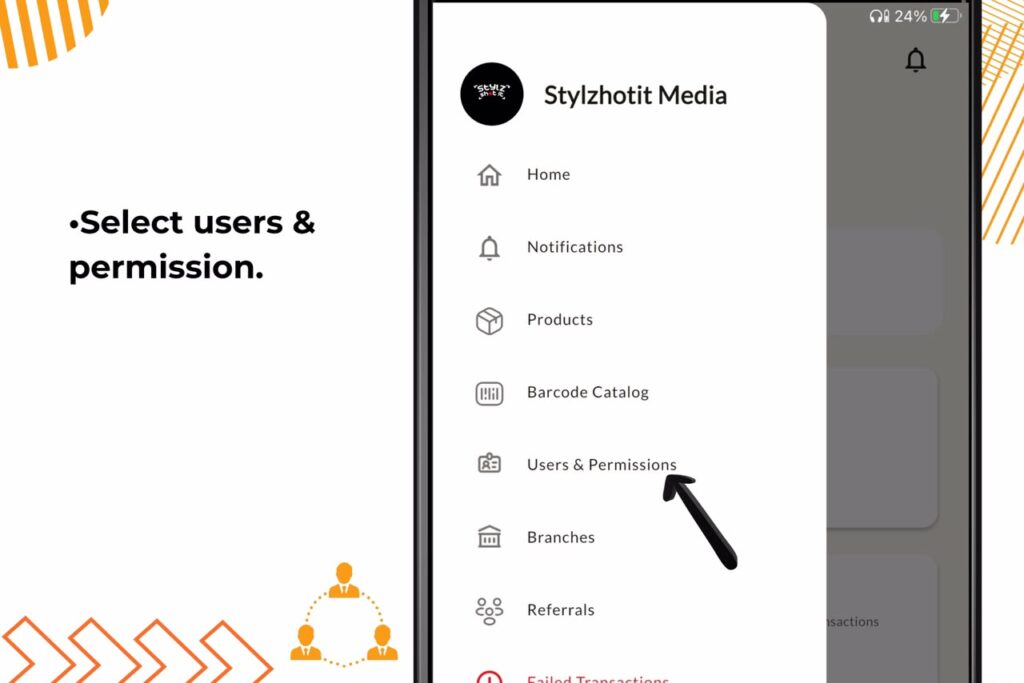
3. Select Users & Permissions: Look for the section labeled Users & Permissions. This is where you manage everyone who has access to your business data.
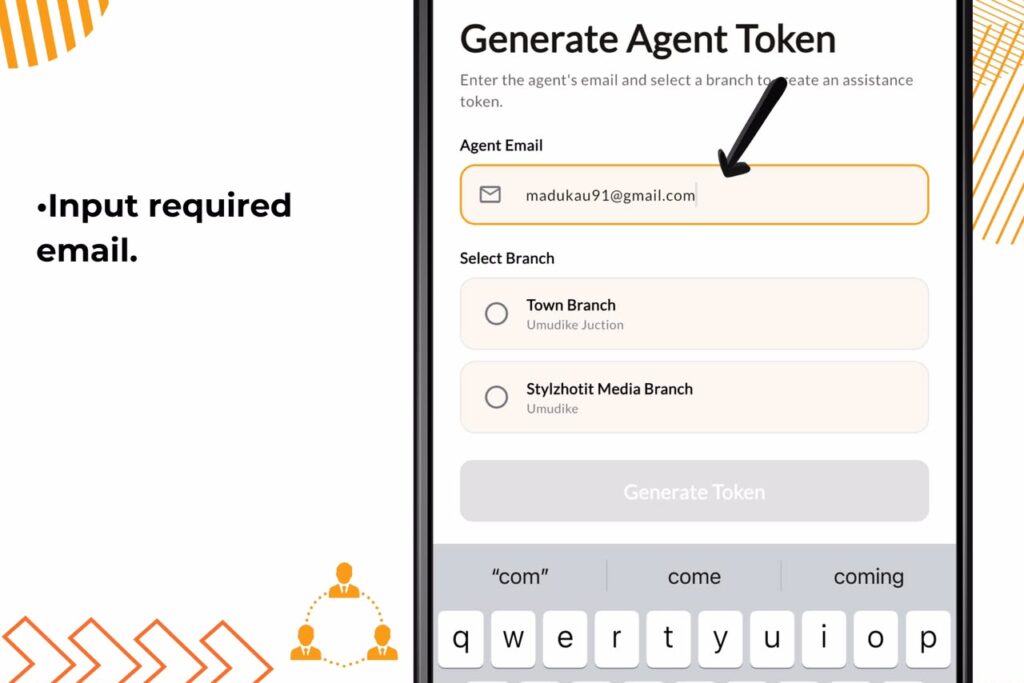
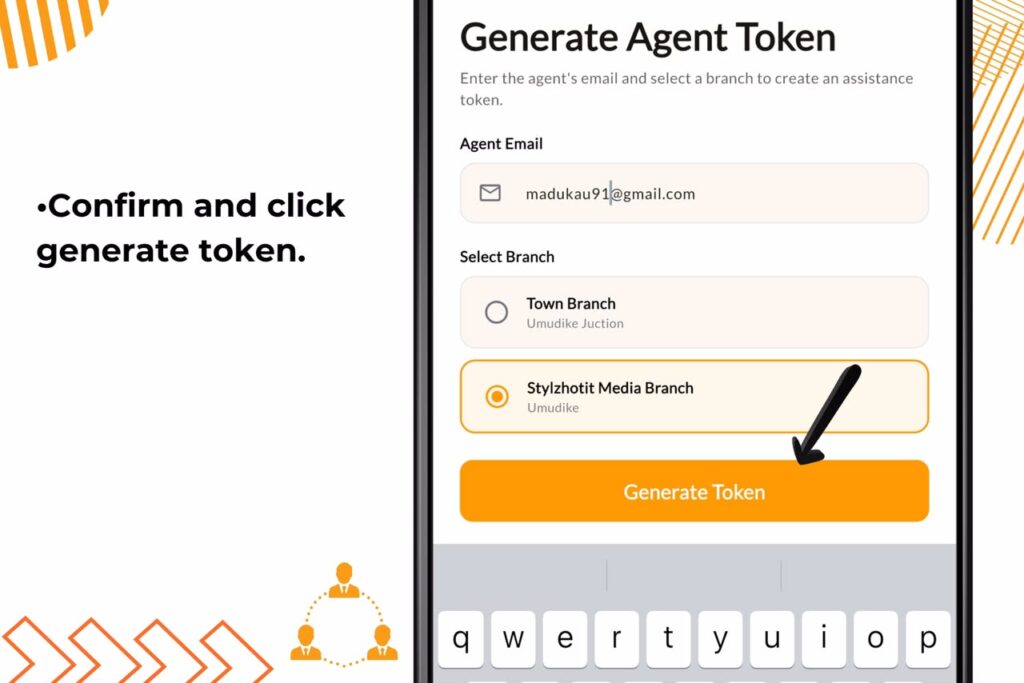
5. Generate Agent Token: Input the required Agent email.
6. Assign To Branch: Assign the agent to the appropriate branch to help.
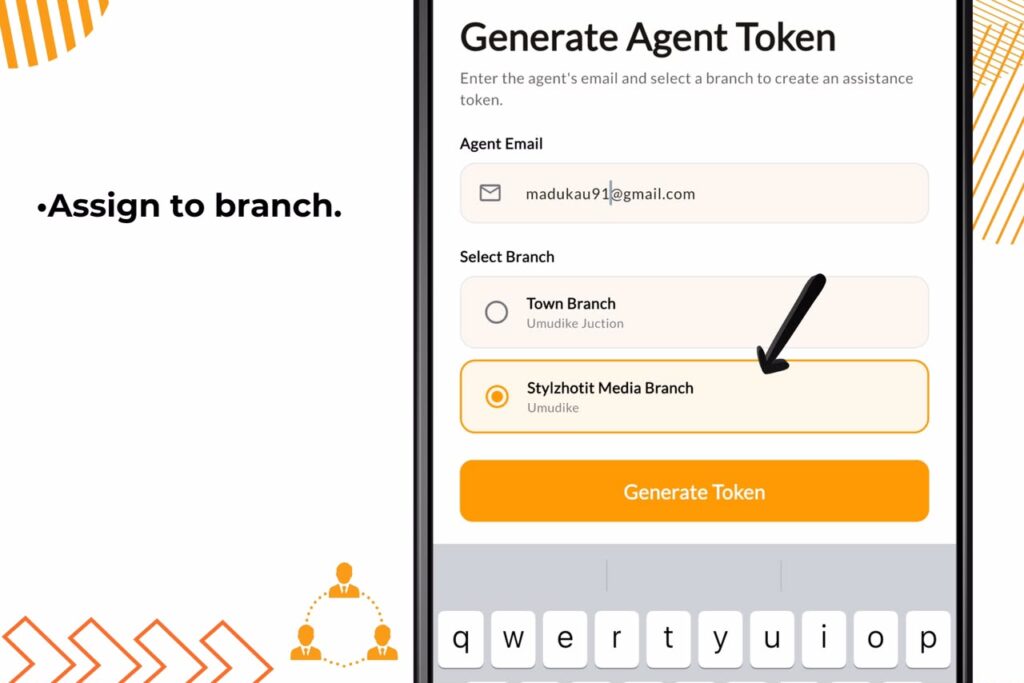
7. Confirm and Generate Token: Once you have filled in the details, click on generate token. The agent will receive an invitation to join your business account.
Monitoring Security with Active Agent Sessions
Once your agents are active, you need to maintain oversight. Within the Users & Permissions section, you will find the Active Agent Sessions screen. This is your security hub. Here, you can see exactly who is currently logged into your business account. If you see an active session for an agent who is not currently working, you can manage or revoke that access instantly. This ensures that your business data remains secure at all times.
Real-Life Example
Imagine you run a busy pharmacy in Lagos and just received a large shipment of new drugs. Instead of spending your entire weekend manually inputting each item, you can invite your shop assistant to handle the task. While they are busy uploading the products, you can use your SaleTick dashboard to monitor their progress in real-time. This collaborative approach saves you hours of work and gets your new stock ready for sale much faster.
Watch the Guide
For a visual walkthrough of how to manage your team and delegate tasks within the app, watch this video:
[Watch YouTube Video: How to Invite SaleTick Agents to Help Upload Products to Your Business]
Take The Next Step
Delegation is the key to scaling any retail business in Nigeria. By using the agent invitation feature in SaleTick, you stop being a bottleneck in your own operations. You empower your team, ensure your inventory data is always precise, and keep your data accurate.
Download SaleTick today from the Google Play Store or Apple Store and enjoy the power of delegation as your business grows.