
Running a business in Nigeria is no small feat. As your shop grows, you cannot be everywhere at once. You need to delegate tasks to your staff, but you also need to maintain control over your inventory, sales data, and profit margins. Giving every employee full access to your business data is a recipe for disaster. This is where proper staff management becomes vital.
With SaleTick, you can create dedicated staff accounts and assign specific roles. This ensures your employees can perform their duties without having access to sensitive financial information they do not need to see.
Why Role-Based Access Matters
When you assign roles, you protect your business. A cashier needs to process sales, but they do not necessarily need to see your total monthly profit or edit product costs. By restricting access, you prevent accidental data changes and reduce the risk of internal theft. SaleTick allows you to define these boundaries clearly.
Step-by-Step Guide on Creating Staff Accounts
To add a new team member to your SaleTick account, follow these steps:
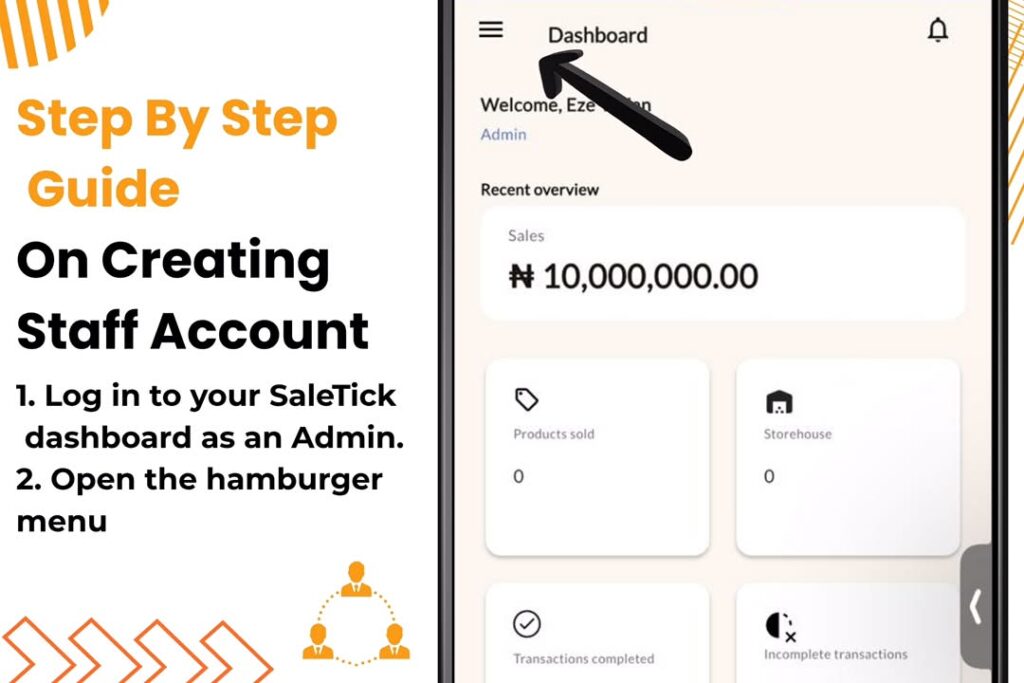
1. Log in to your SaleTick dashboard as an Admin.
2. Open the hamburger menu (three lines at the top left of your screen).
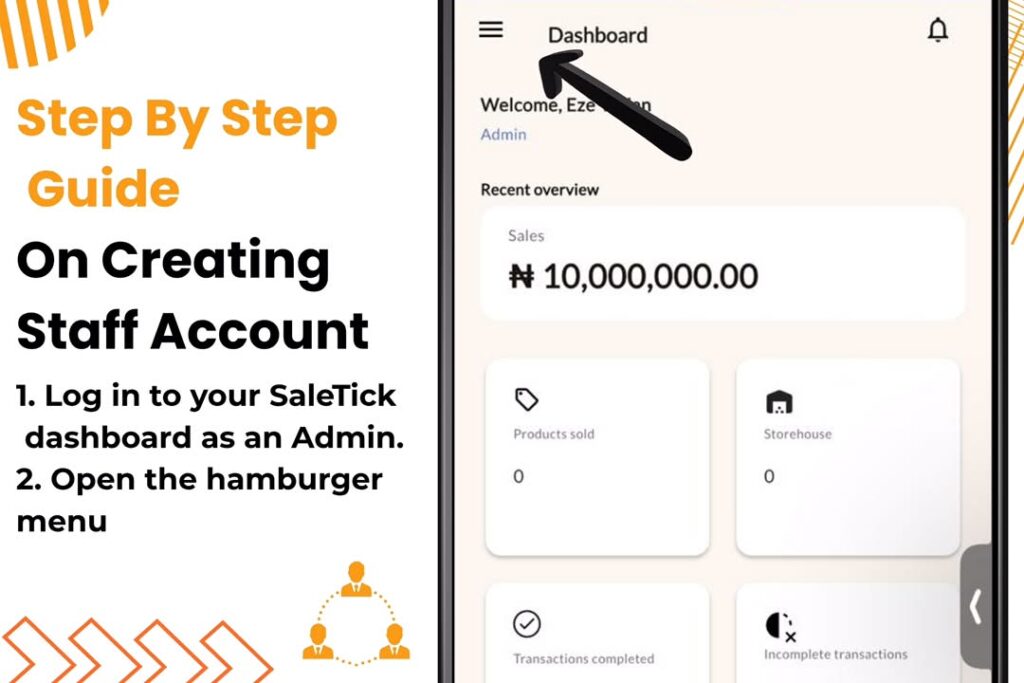
3. Tap on Users & Permissions.
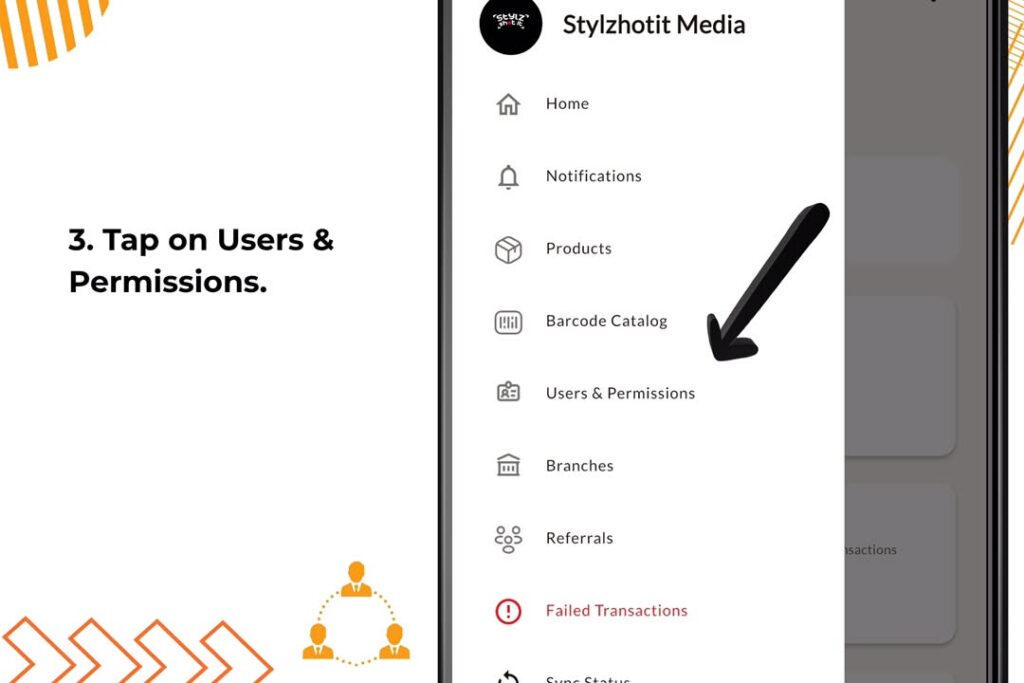
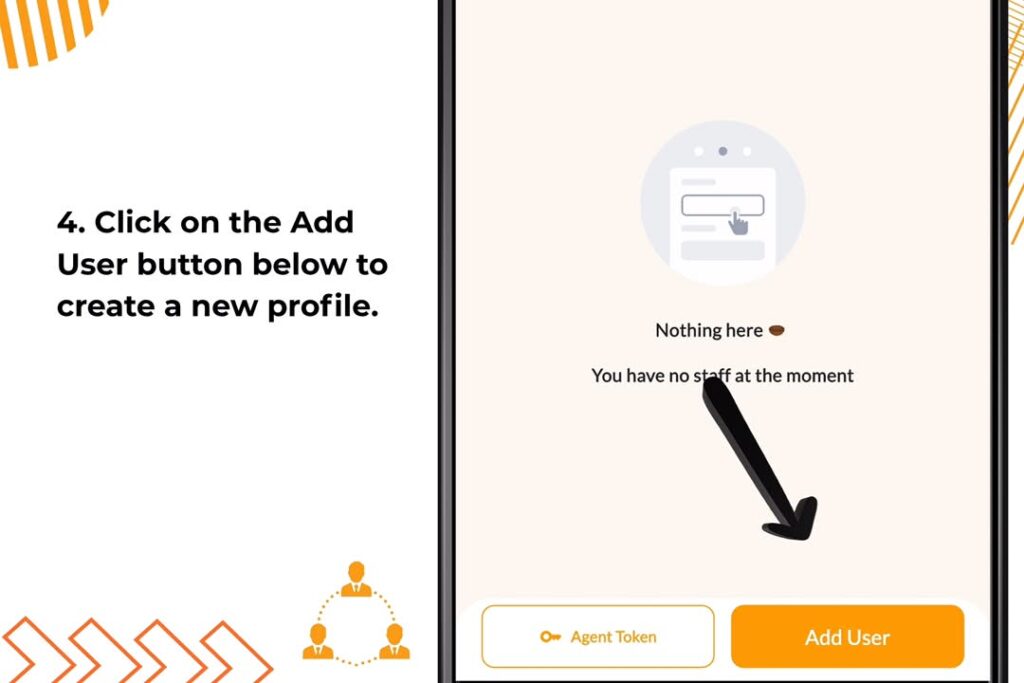
4. Click on the Add User button below to create a new profile.
5. Enter the details: Fill in the staff member’s full name, email address, phone number and create password for the staff (This password creation for staff is optional. Note, that only fresh accounts would receive passwords as accounts already in the system won’t be allowed to input a new password.)
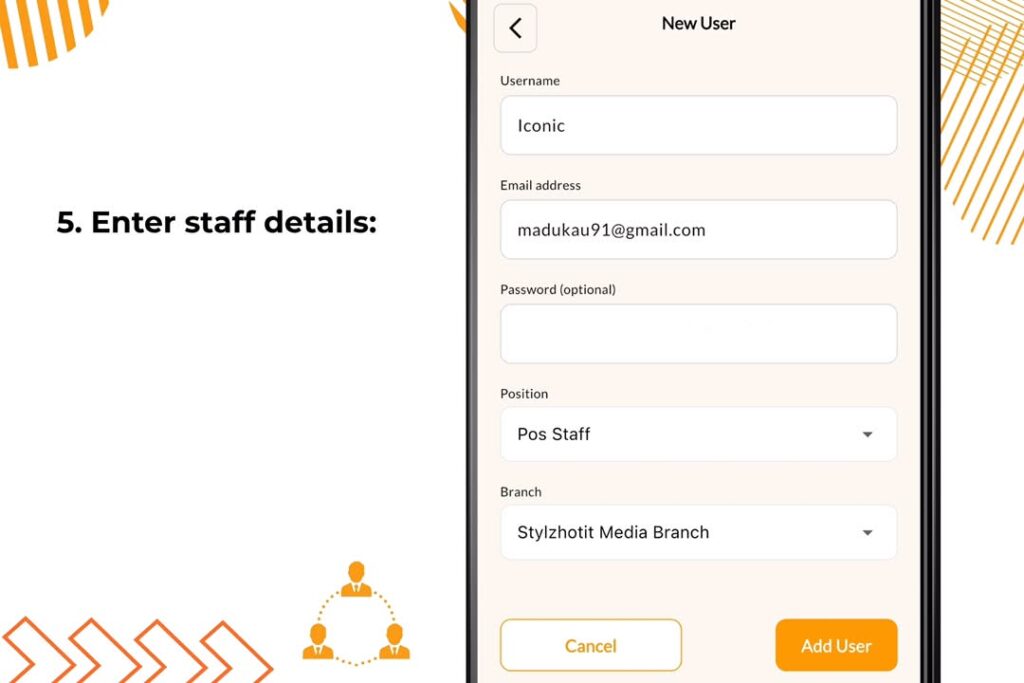
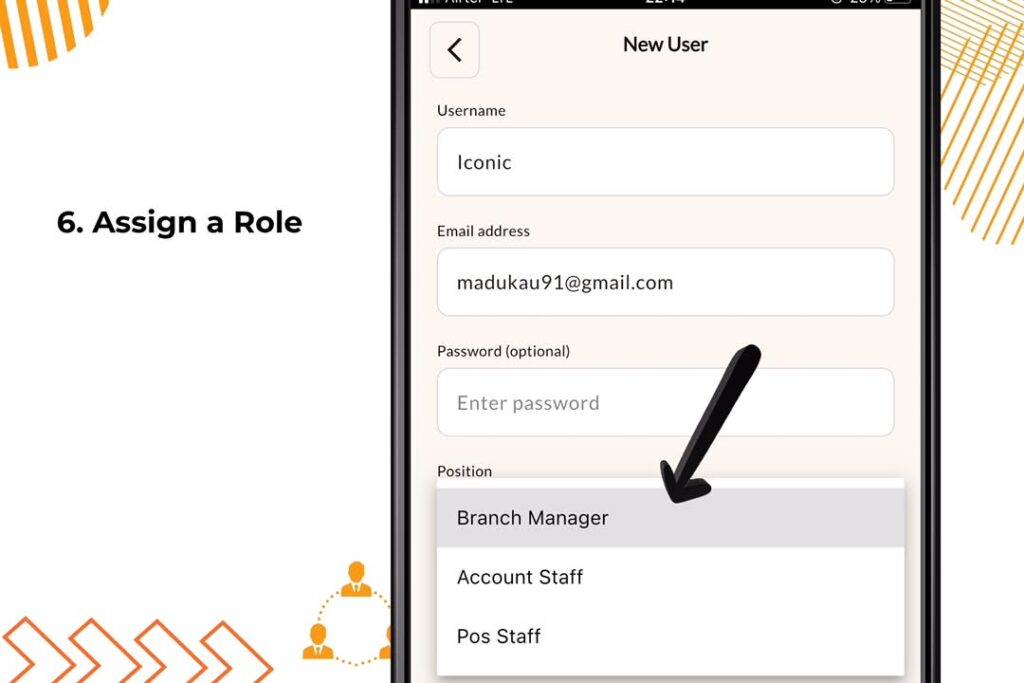
6. Assign a Role: Select the appropriate role from the Select Position dropdown menu (e.g., Branch Manager, POS Staff, or Account Staff).
7. Select Branch: If you operate multiple locations, choose the specific branch where this staff member will work.
8. Add User: Click the Add User button to finalize the account.
Once saved, the staff member will receive a notification in their email on the creation of their account, allowing them to access the POS interface securely.
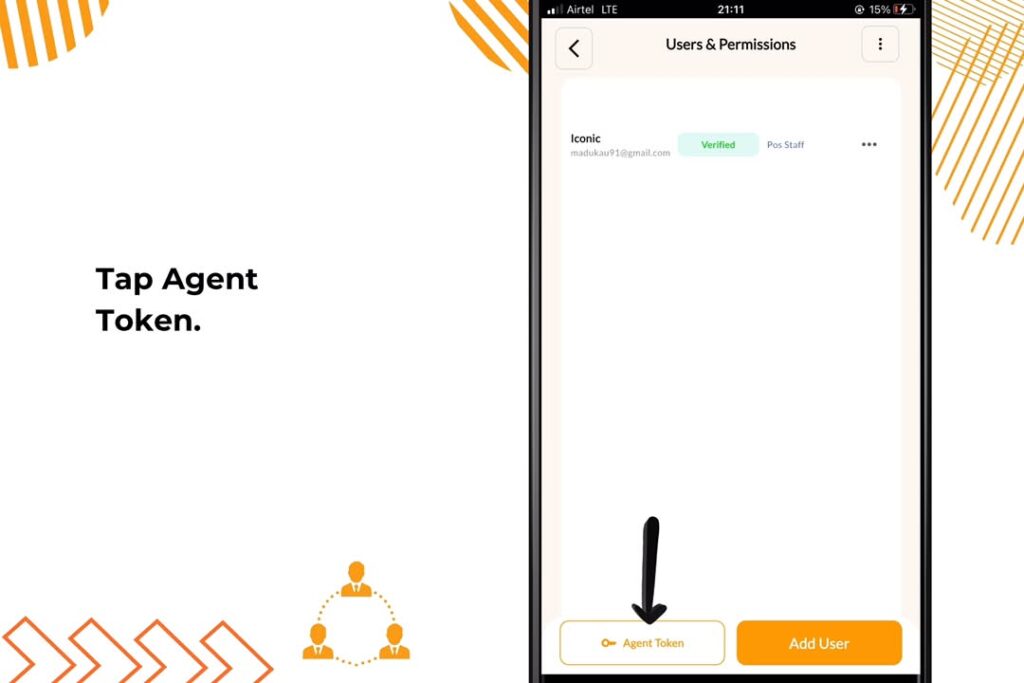
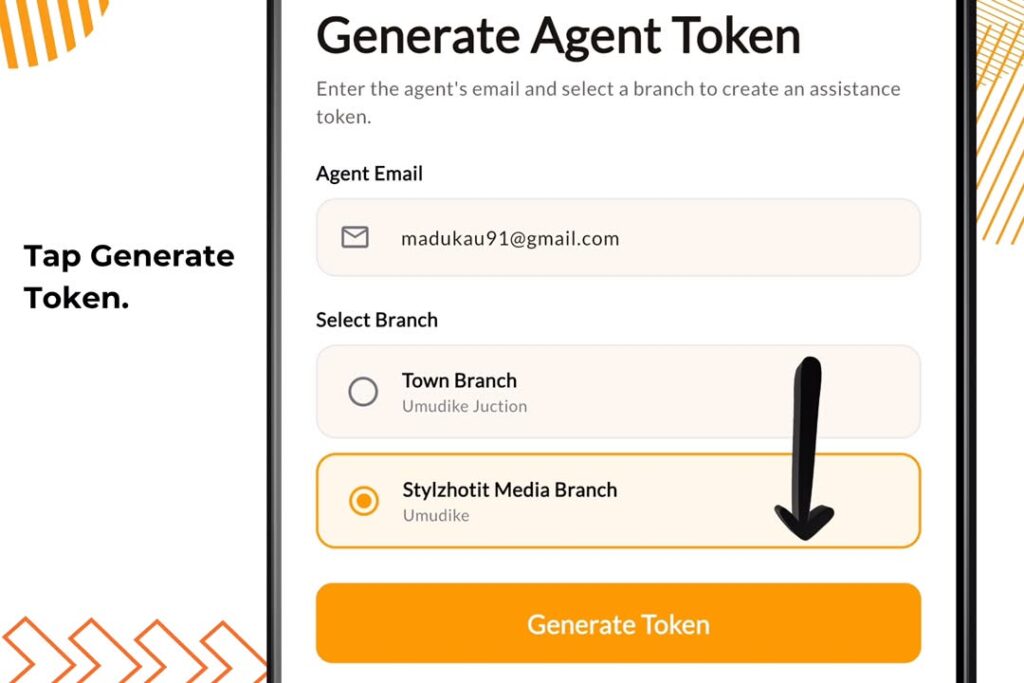
You can also Generate Agent Token by going into Users & Permissions, tapping on Agent Token and simply entering the Agents email address and selecting the branch the agent will be operating at.
Understanding Staff Roles
SaleTick provides distinct roles to keep your operations organized:
- Administrator: Full access to all business data, settings, and staff management.
- Manager: Can manage inventory, view reports, and oversee staff within their assigned branch.
- POS Staff: Limited to processing sales and viewing their own branch inventory.
- Account Staff: Focused on financial records and reporting.
Managing Your Team Effectively
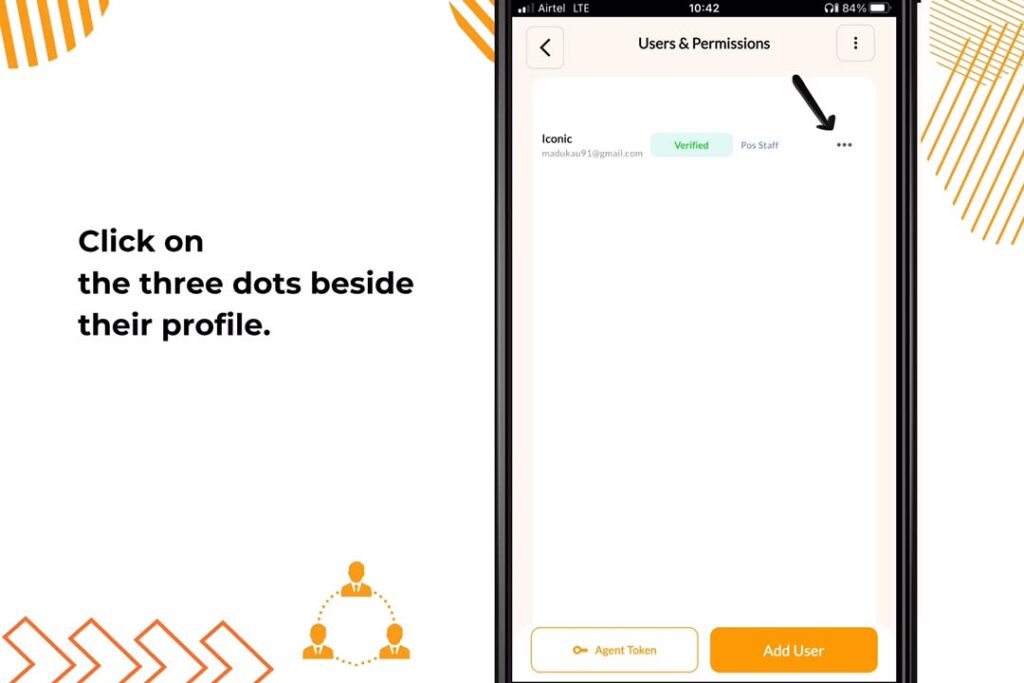
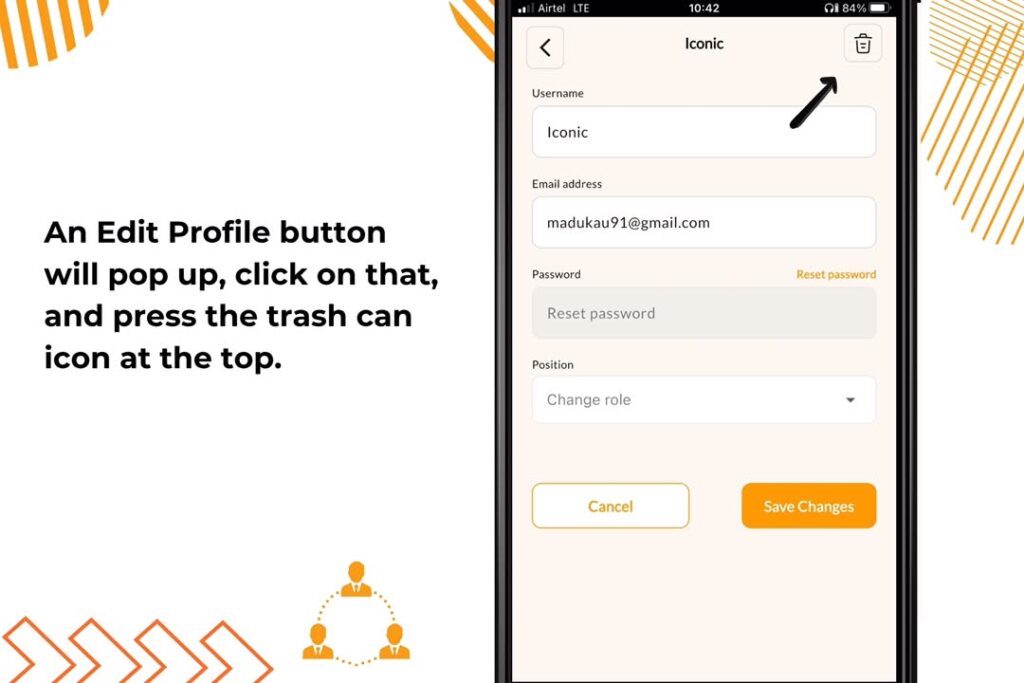
Once your staff is set up, you can monitor their performance directly from your dashboard. You can see who is making the most sales, track their daily activity, and ensure that every transaction is accounted for. If a staff member leaves your business, you can simply go to the Users & Permissions in the hamburger menu, click on the three dots beside their profile. An Edit Profile button will pop up, click on that, and press the trash can icon at the top.
CLICK HERE TO WATCH A VISUAL INSTRUCTION ON THE SALETICK YOUTUBE CHANNEL
The SaleTick Advantage
SaleTick is built to give Nigerian business owners total control. By using the staff management feature, you build a system of accountability. You no longer have to worry about who is doing what in your shop. You get the peace of mind that comes with knowing your business is running exactly how you planned, even when you are not physically present.
Delegation is the key to scaling your business. By creating staff accounts and assigning the right roles in SaleTick, you empower your team while keeping your business data secure. It is a simple, professional step that every growing business needs to take. Ready to organize your team? Download or Log into SaleTick today and start managing your staff with confidence. Need help with your setup? Reach out to our Saletick support team via phone call at 08169302992 and Let Your Business Speak.