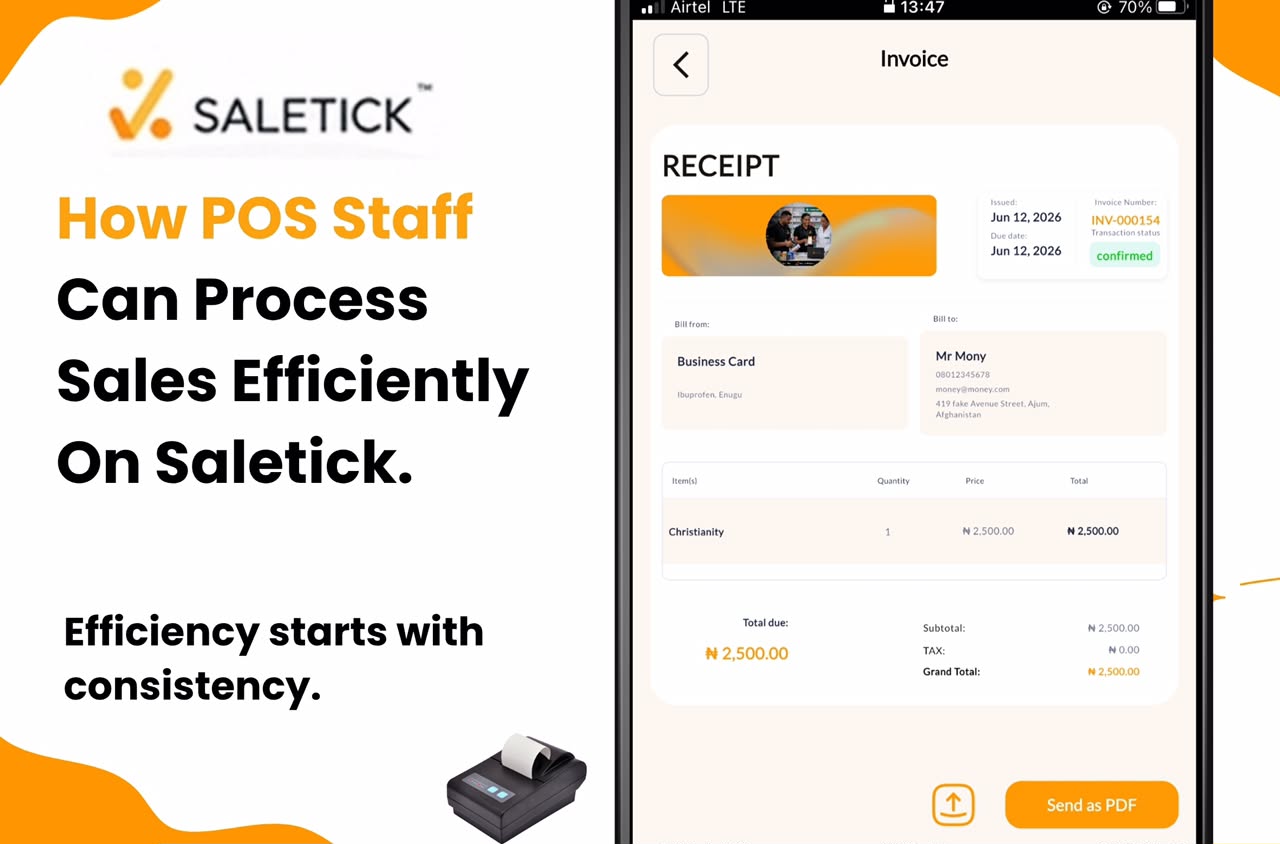
In the fast-paced Nigerian retail market, speed and accuracy are the pillars of a successful business. Whether you are running a busy supermarket, a pharmacy, or a boutique, your Point of Sale (POS) staff need a system that works as fast as they do. SaleTick is built to eliminate long queues and manual errors, ensuring that every transaction is recorded perfectly.
If you want your staff to master the checkout process and keep your inventory data bulletproof, follow this exact workflow.
The SaleTick Sales Workflow
Efficiency starts with consistency. When your staff follows this step-by-step process, they ensure that every sale is tracked, stock is updated, and customers receive their documents instantly.
1. Product Identification
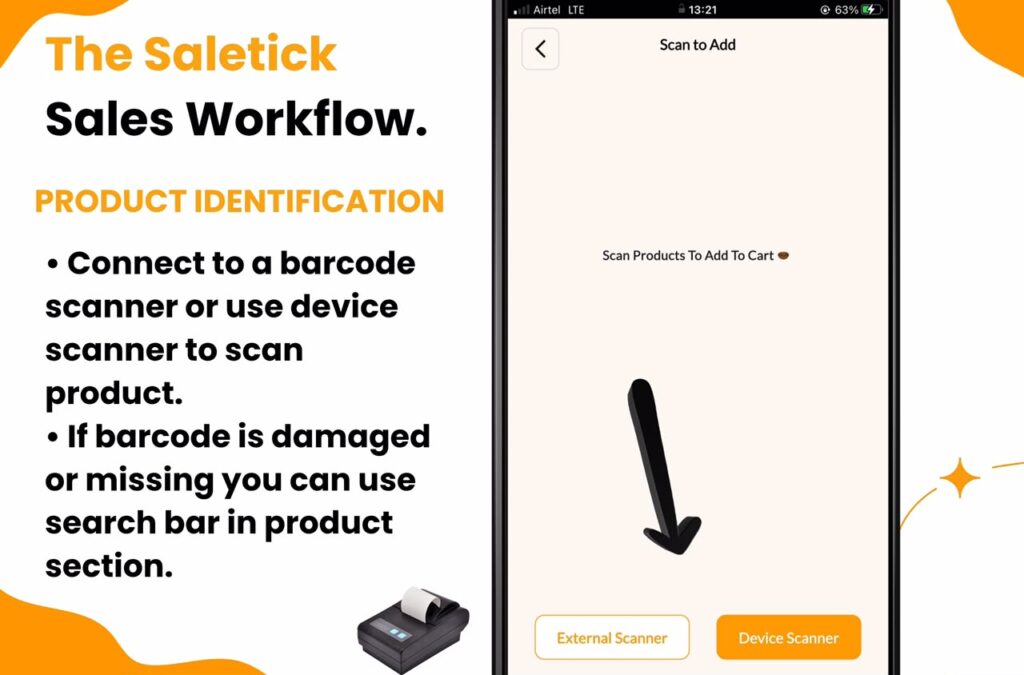
Staff should begin by using a connected barcode scanner to scan the product or better still make use of their device scanner. This is the fastest way to pull up the correct item. If the barcode is damaged or missing, staff can use the search bar in the Product Section to find the product by name.
2. Adding to Cart
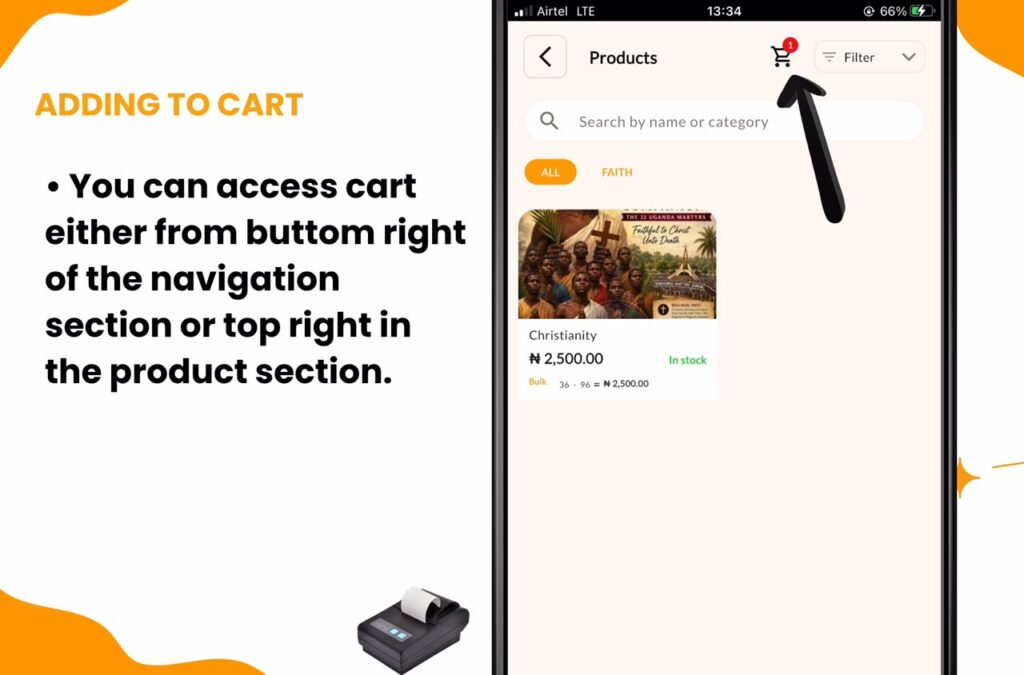
Once the product is identified, it is added to the active cart. By default, SaleTick uses the ‘Main’ cart. You can access the cart either from the bottom right of the navigation section or from the top right in the product section.
3. Managing the Cart
Mistakes happen, and customers change their minds. Staff should use the `Cart` function at the bottom right of the navigation menu to handle these situations. This allows them to:
- Add items: Scan more products or click on Add New Item.
- Remove items: Quickly delete an item if a customer decides against it.
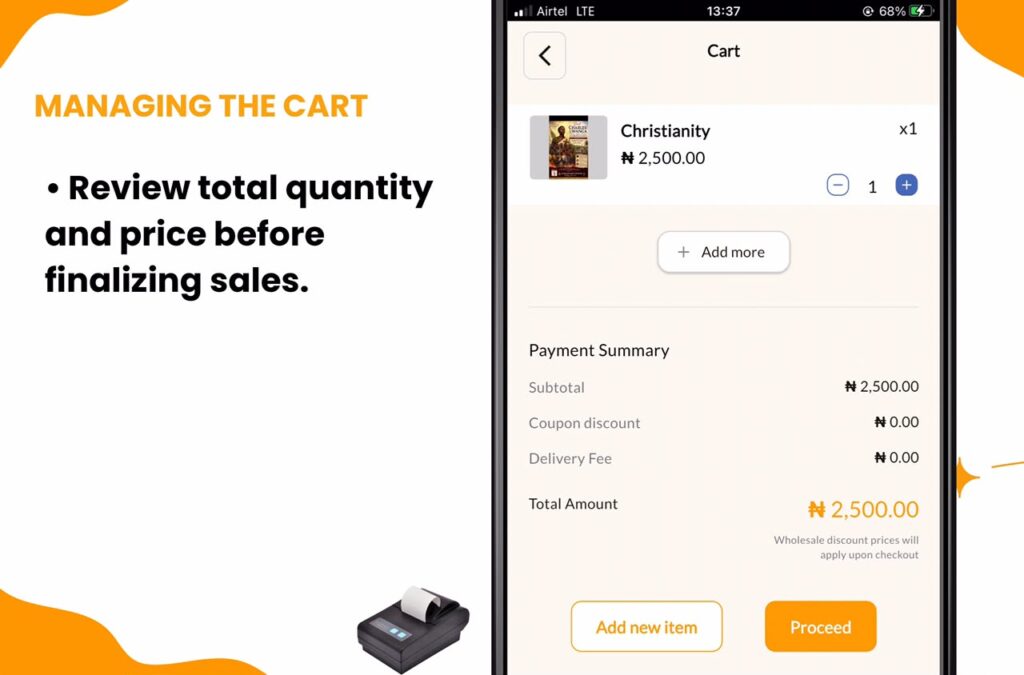
- View cart: Review the total quantity and price before finalizing the sale.
4. Performing Checkout
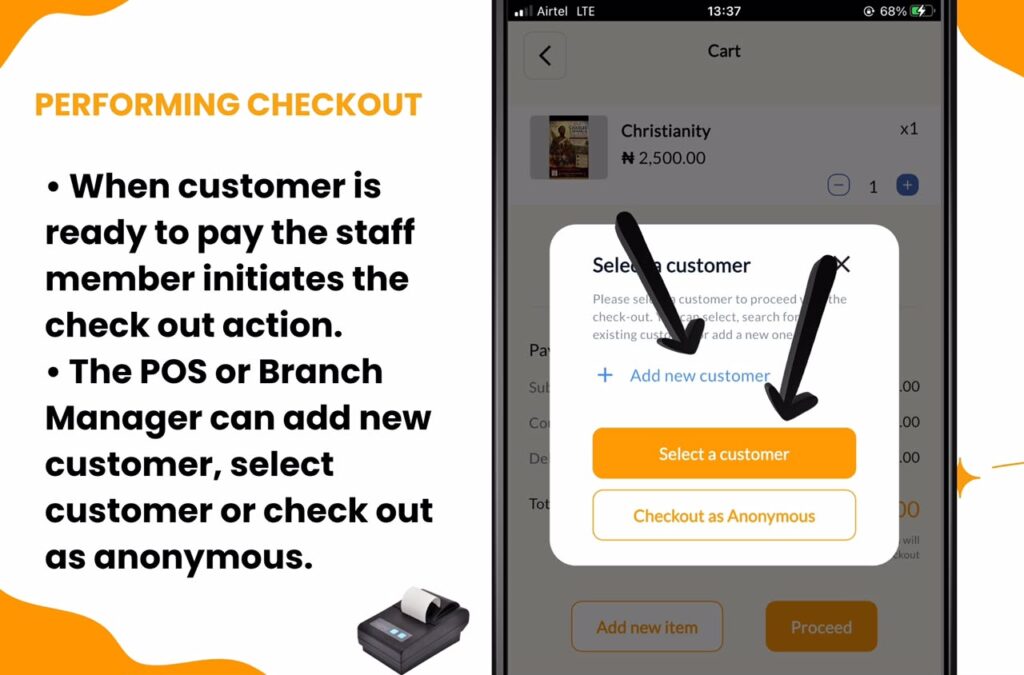
When the customer is ready to pay, the staff member initiates the `Checkout` action. This is the critical step where the sale is moved from a temporary cart to a formal record. The POS Staff or Branch Manager will be prompted to Add New customer, Select Customer or Check out as Anonymous.
5. Recording Payment Method
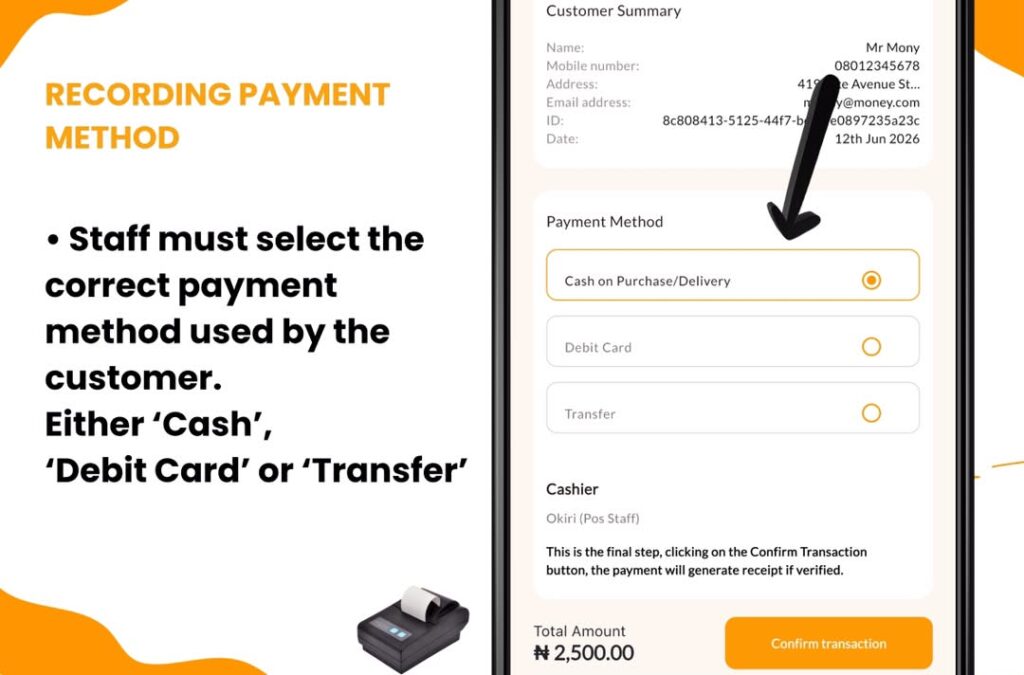
Accuracy in reporting starts here. Staff must select the correct `payment method` used by the customer. Whether it is `Cash`, `Transfer`, or `Card`, selecting the right option ensures your end-of-day sales summary is 100% accurate.
6. Selecting Document Type
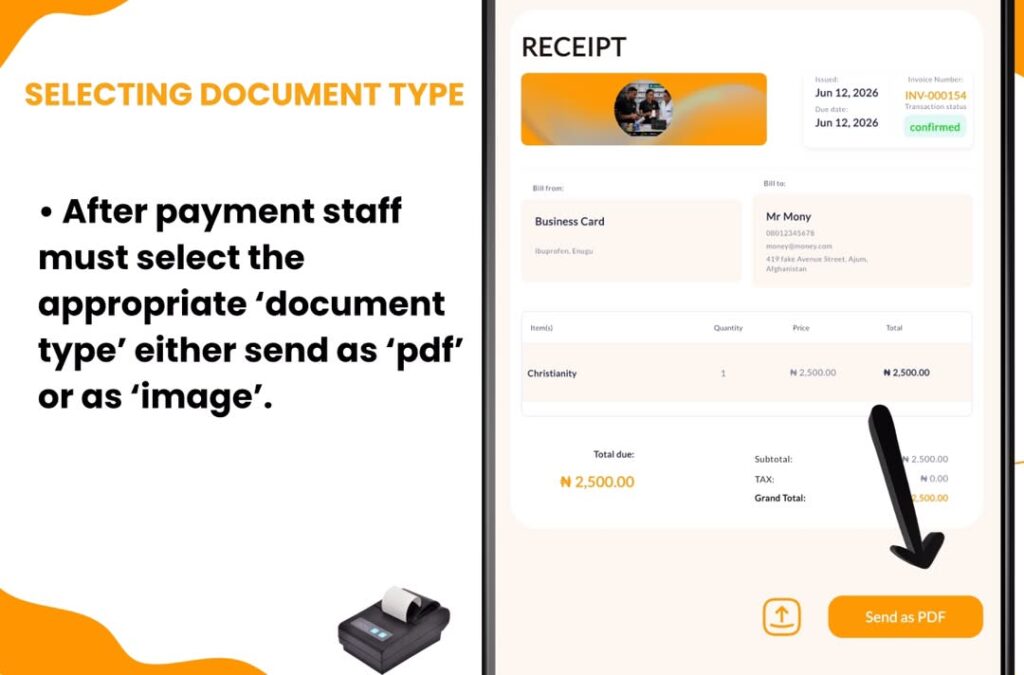
After the Record Payment Method, staff must select the appropriate `document type` either to send as PDF or as image:
- Receipt: Use this for a completed, paid sale. This triggers the final inventory deduction and closes the order.
- Invoice: Use this for pending orders or when a customer needs a formal request for payment before finalizing.
7. Finalizing and Sending
Once the checkout is confirmed, SaleTick generates the document. The system automatically sends the Receipt or Invoice directly to the customer via WhatsApp or Email, if the customer has been added as a customer to your business otherwise the POS Staff can leave as anonymous. This provides a professional touch and gives the customer an instant digital record of their purchase.
All these features are only available on the POS interface of the app for Branch Manager, POS Staff and Account Staff. The Administrator account cannot access these features as only staffs can checkout products.
Why This Process Works
By sticking to this workflow, your staff ensures that your inventory is always in sync with your sales. Because SaleTick automatically updates stock levels upon generating a `Receipt`, you never have to worry about manual stock counts or missing items.
Master Your POS Operations
We have created detailed video guides to help your staff get comfortable with these features. You can watch our full library of tutorials here:
[Watch Saletick Tutorial Here]
Efficiency is a choice. By training your staff to follow the SaleTick workflow, you are setting your business up for better reporting, less stock loss, and happier customers.
Ready to optimize your shop? Log in to your dashboard or download the app to get started.