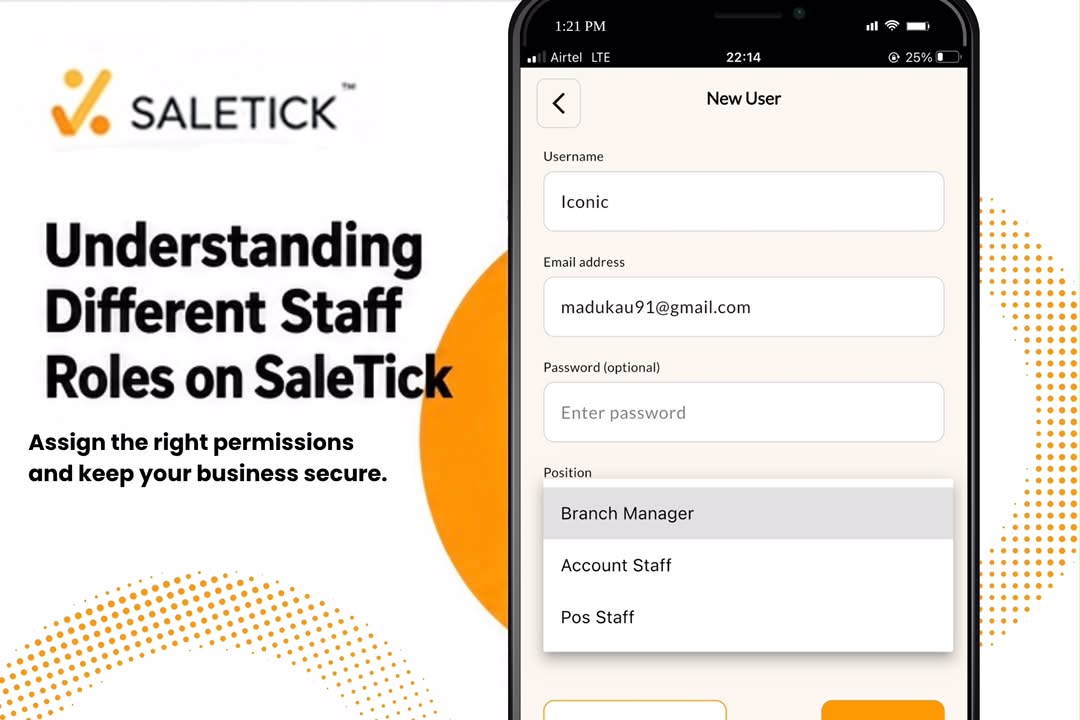
Running a retail business in Nigeria is no small feat. Whether you own a bustling supermarket in Lagos or a pharmacy in Kano, you know that managing your team is just as important as managing your stock. You cannot be everywhere at once. You need a system that allows you to delegate tasks without losing control over your business data.
This is where understanding staff roles on SaleTick becomes a game changer. By assigning the right permissions to the right people, you protect your profit and streamline your daily operations. For a detailed step by step process on assigning roles, read this article; How to Create Staff Accounts and Assign Roles on SaleTick.
Why Role-Based Access Matters

Many business owners make the mistake of giving every staff member full access to their dashboard. This is a recipe for disaster. When a cashier has the same access as the owner, you risk accidental data deletion, unauthorized price changes, and inaccurate reporting.
SaleTick solves this by offering structured roles. Each role is designed to give your team exactly what they need to do their jobs, and nothing more.
Breaking Down SaleTick Staff Roles
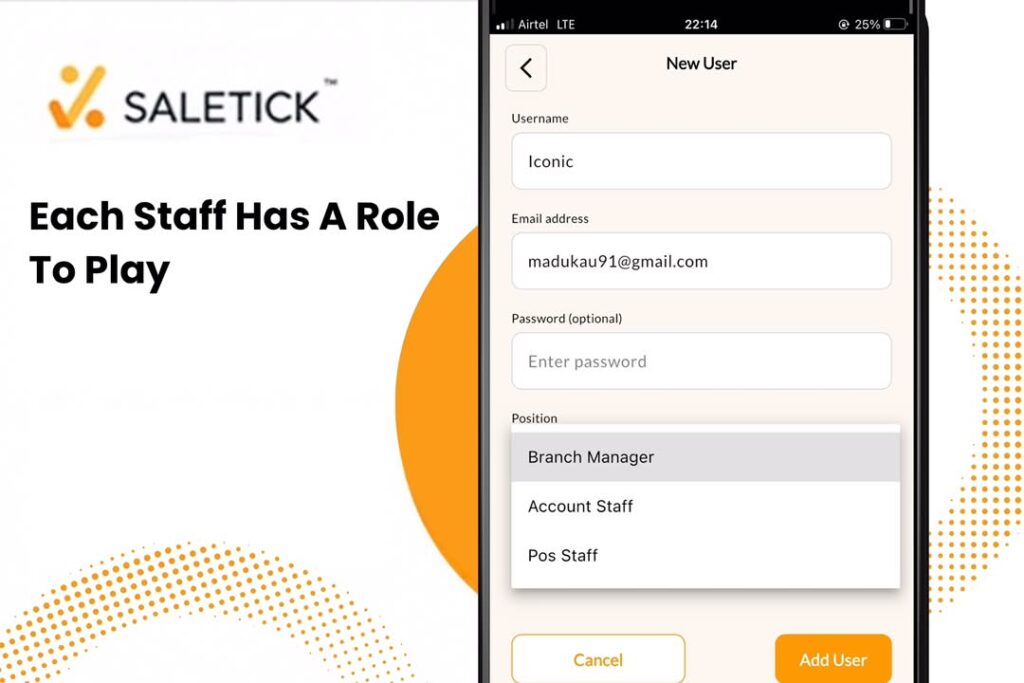
To keep your business secure, SaleTick categorizes users into specific roles. Here is how they differ:
1. Admin (The Owner)
The Admin is the master of the business. You have full, unrestricted access to everything.
- You can view all reports,
- Manage all branches,
- Add new staff,
- Monitor finances of each branch,
- Monitor business and branch activity of every staff and edit business settings.
- The Administrator is also responsible for setting up the WhatsApp Saletick Agent and also assigning a Saletick Whatsapp agent for each individual branch from the Business Life Setup. To learn how to setup the Saletick Whatsapp agent, read this article; How To Chat With Saletick Using Whatsapp
The Administrator account cannot checkout sales or Scan products to Add to Cart.
2. Manager
The Manager is your right-hand person. They oversee specific branches.
- Manage inventory and monitor Finances of their specified Branch
- View sales reports for their assigned location,
- Make sales and scan to Add Products to Cart,
- Add and Edit Products,
- Add Users and Staff for their specified Branch
- Supervise POS staff.
They have enough power to keep the branch running smoothly but cannot change sensitive business settings that only the Admin controls.
3. POS Staff
These are your frontline workers. Their role is focused entirely on the sales process.
- They can process transactions
- Manage the shopping cart
- Issue receipts
They do not have access to your profit margins, supplier details, or overall business reports. This keeps your sensitive financial data private.
4. Account Staff
This is the accountant of your business. This person handles and records all the financial transactions and they can also make sales and checkout. They cannot add or edit product prices but are only concerned with inventory tracking and reporting.
Real-World Application
Imagine you run a supermarket with three branches. You want your branch managers to handle restocking, but you do not want them to see the total revenue of the other two branches. By assigning them as Managers to their specific branch, SaleTick automatically restricts their view to only the data relevant to them. Meanwhile, your cashiers remain restricted to the POS interface, ensuring they focus only on serving customers.
Click Here To Watch A Practical Instruction On The Saletick YouTube Channel
Take Control of Your Business Today
Managing a team should not be a source of stress. With the right roles assigned in SaleTick, you can delegate with confidence, knowing your business data is secure and your operations are transparent.
Stop worrying about who sees what and start focusing on growing your sales.
Ready to streamline your team management? Download the SaleTick app today or from Google Play Store or Apple Store and set up your staff roles in minutes. Keep your business organized, secure, and profitable.